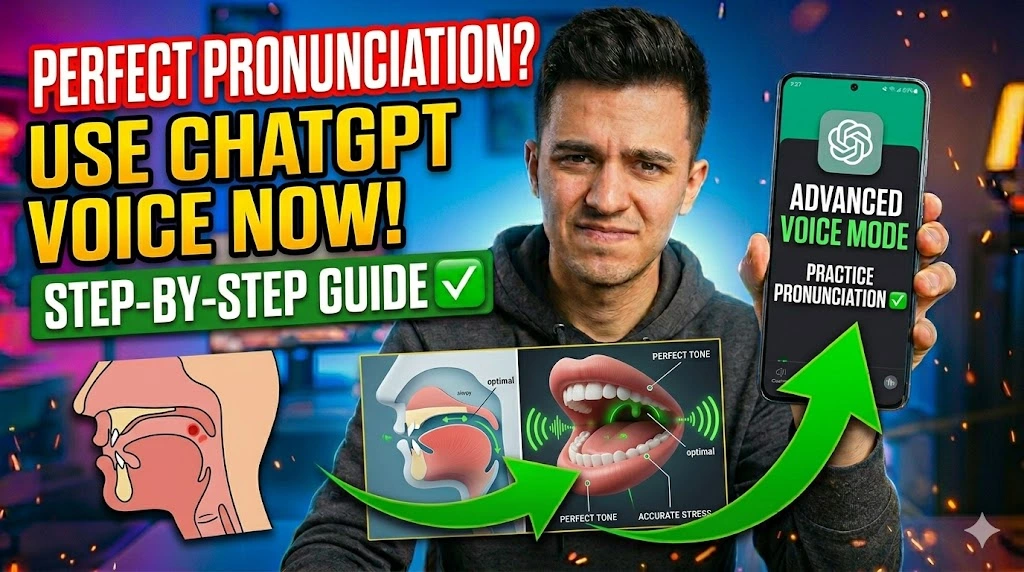
If you’ve been trying to improve your English pronunciation — or any language — and feel like traditional apps give you robotic, one-size-fits-all feedback, you’re not imagining the gap. ChatGPT’s Advanced Voice Mode is genuinely different. It processes your actual speech in real time, responds conversationally, and can correct your pronunciation mid-sentence the same way a patient human tutor would.
The challenge most learners hit isn’t the technology — it’s not knowing how to structure the practice sessions to get maximum value. Many users open Voice Mode and just chat casually, missing the targeted feedback that makes it a serious pronunciation tool. Others don’t realise you can prompt it to slow down, repeat phonemes, or compare your accent against specific regional English styles.
This guide walks you through five structured techniques — from your very first voice session setup to advanced accent refinement drills — so every minute you spend practising converts into measurable improvement rather than aimless conversation.
Technical Specifications
| Technical Detail | Specification / Requirement |
|---|---|
| Target Platform | ChatGPT iOS App, Android App, Web (Chrome/Safari) |
| Feature Required | Advanced Voice Mode (ChatGPT Plus, Team, or Enterprise) |
| Supported Languages | English, Spanish, French, Hindi, Japanese, and 40+ others |
| Difficulty Level | Beginner to Intermediate |
| Estimated Setup Time | 3 – 5 minutes |
| Microphone Access | Required — device mic permission must be enabled |
| Internet Connection | Stable broadband or 4G/5G (low latency critical for voice) |
Method 1: Set Up Advanced Voice Mode and Enable Microphone Permissions
Before any pronunciation work happens, you need to confirm Advanced Voice Mode is actually active on your account — not the basic voice feature, which uses a different, less capable audio pipeline. Many Plus subscribers don’t realise these are two separate systems.
- Open the ChatGPT app on your phone or visit chat.openai.com on a desktop browser and sign in to your Plus, Team, or Enterprise account.
- Look for the waveform icon at the bottom of the chat screen — it appears as a sound wave symbol, not a simple microphone icon. If you see only a microphone, Advanced Voice Mode isn’t enabled yet on your account.
- Tap your profile icon in the top-right corner and select Settings. Navigate to Voice and confirm that Advanced Voice Mode is toggled on.
- When prompted, grant microphone permission to the ChatGPT app. On iPhone: Settings → Privacy & Security → Microphone → ChatGPT → toggle On. On Android: Settings → Apps → ChatGPT → Permissions → Microphone → Allow.
- Return to the main chat screen and tap the waveform icon. The screen should shift to a full-screen ambient listening interface — that’s your confirmation that Advanced Voice Mode is live.
Method 2: Use a Structured Opening Prompt to Activate Pronunciation Coach Mode
Advanced Voice Mode responds to instruction prompts exactly like text ChatGPT does — but most users never give it a specific role before starting. Defining the session upfront transforms it from a casual AI conversation into a focused language coach that listens for errors rather than just meaning.
- Tap the waveform icon to enter Advanced Voice Mode and wait for the ambient listening animation to appear — this confirms ChatGPT is actively processing your audio.
- Speak this opening instruction clearly: “I want you to act as my English pronunciation coach. After each sentence I say, correct any mispronounced words and explain how to position my mouth or tongue to say them correctly. Be specific and patient.”
- Wait for ChatGPT to acknowledge the instruction — it will typically confirm the role and ask what you’d like to practise first.
- Specify your focus area by saying something like: “I struggle with the TH sound and the difference between V and W. Start by giving me five sentences that contain those sounds so I can practise them.”
- Speak each sentence it gives you and listen carefully to its feedback. ChatGPT will flag the exact word where pronunciation broke down, not just give a general “try again” response.
Method 3: Run Minimal Pair Drills for Targeted Sound Discrimination
Minimal pairs — word pairs that differ by only one sound, like “ship/sheep” or “hat/hot” — are the most effective phonetics exercise for non-native speakers. Advanced Voice Mode can generate unlimited custom minimal pair drills and hear whether you’re nailing the distinction.
- Enter Advanced Voice Mode and give it this instruction: “Let’s do minimal pair drills. Say two similar words that differ only in one sound, then I’ll repeat both back to you. Tell me if I’m making the distinction clearly.”
- Listen as ChatGPT reads the first pair — for example, “bet” and “bat” — and pay attention to which vowel sound differentiates them.
- Repeat both words back clearly, exaggerating the vowel difference slightly on your first attempt. Exaggeration helps your mouth muscle memory establish the correct position before you refine it.
- Ask ChatGPT to rate your distinction on a scale of 1 to 5 and explain which sound needs adjustment. Prompt it with: “Was the vowel difference clear? What should my mouth be doing differently for the second word?”
- Request 10 pairs targeting the same sound before moving on. Consistency within one session builds retention faster than jumping between different problem sounds.
Method 4: Practise Real Conversation Scenarios with Accent Coaching
Isolated drills build technical skill, but real fluency means pronouncing correctly under the cognitive load of actual conversation. This method puts your pronunciation into a simulated scenario — a job interview, a customer service call, a doctor’s appointment — where you’re thinking about content and pronunciation simultaneously.
- Start a new Advanced Voice Mode session and set the scenario: “Let’s role-play a job interview. You’re the interviewer, I’m the candidate. After every 2–3 exchanges, pause and give me feedback on any pronunciation errors before we continue.”
- Respond naturally to each interview question ChatGPT asks. Speak at your normal conversational pace — don’t slow down artificially, because the goal is catching errors that occur at natural speed.
- Note which words ChatGPT flags repeatedly across different sentences. Recurring errors on the same sound pattern indicate a systematic pronunciation habit, not a one-off mistake.
- Request a summary at the end: “Which three sounds did I mispronounce most frequently in this conversation? List them and give me a corrective drill for each one.”
- Save the text transcript of the session — on mobile, tap the chat to exit voice mode and the full transcript appears. Screenshot or copy it to track your progress across sessions.
Method 5: Use Phoneme Breakdown Requests for Difficult Words
Some words just resist correction no matter how many times you repeat them. When that happens, the right move is going surgical — asking ChatGPT to break the word into individual phonemes and coach you through each sound component separately before you reassemble the word.
- Enter Voice Mode and say the word that’s giving you trouble — for example, “Worcestershire” or “particularly” or “entrepreneurship.”
- Ask ChatGPT to break it down: “Say that word slowly, one syllable at a time, and tell me the IPA phonetic symbols for each syllable so I understand the exact sounds.”
- Repeat each syllable individually after ChatGPT pronounces it. Confirm your pronunciation of each part before moving to the next — don’t rush to reassemble the full word.
- Ask it to use an analogy: “What common English word does the first syllable sound like?” Anchoring an unfamiliar phoneme to a word you already know pronounce correctly creates a reliable mental reference.
- Attempt the full word once you’ve nailed every syllable separately. Request a final comparison: “I’m going to say the full word now — tell me if it sounds natural or if any syllable is still off.”
Frequently Asked Questions
Does ChatGPT Advanced Voice Mode work for non-English pronunciation practice?
Yes, and it handles this better than most learners expect. Advanced Voice Mode supports over 40 languages including Spanish, French, Mandarin, Hindi, Arabic, Japanese, and Portuguese. You can run the same structured coaching prompts in any supported language — just open in your target language and instruct it to correct pronunciation in that language. For language learners working on accent reduction specifically, you can even ask it to model different regional accents within a language, like distinguishing between Latin American Spanish and Castilian Spanish pronunciation patterns.
Is ChatGPT Advanced Voice Mode accurate enough to replace a human pronunciation tutor?
For the majority of everyday pronunciation errors — vowel confusion, consonant substitution, stress patterns, and syllable timing — Advanced Voice Mode is genuinely effective and significantly more accessible than human tutors. Where it falls short is in providing real-time visual feedback (mouth and tongue positioning diagrams), detecting very subtle accent markers that only trained phoneticians catch, and the motivational accountability a human relationship provides. The most effective approach combines weekly human tutor check-ins with daily Advanced Voice Mode drills, using the AI for high-volume repetition practice and the tutor for qualitative assessment.
Why isn’t my ChatGPT Advanced Voice Mode giving pronunciation corrections even after I set up the coaching prompt?
Two things typically cause this. First, check that you’re actually in Advanced Voice Mode and not basic voice — the ambient waveform animation should be visible, not just a microphone button. Basic voice mode doesn’t have the audio reasoning capability to analyse pronunciation nuance. Second, be more explicit in your prompt. Instead of saying “correct my pronunciation,” say “after every sentence I speak, identify any word I mispronounced and explain the correct articulation.” The more specific your instruction, the more focused and useful the feedback becomes.