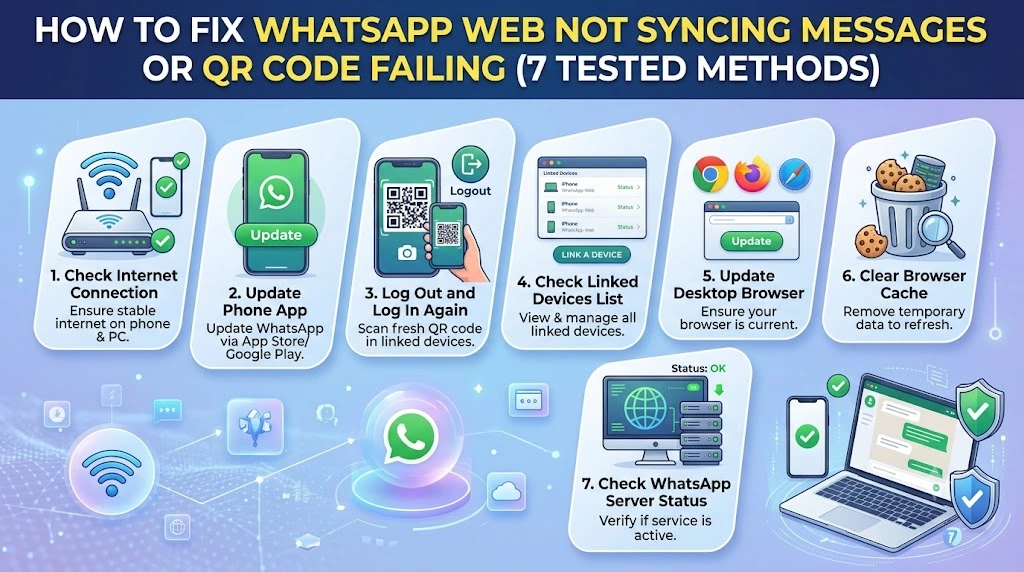
Category: Mobile Troubleshooting | Website: Taazamind.com
You scan the QR code, the screen spins — then nothing. Or WhatsApp Web loads but your messages stopped syncing hours ago and the chat list looks frozen in time. If either of these describes your situation, you’ve landed in the right place. WhatsApp Web depends on a live, active connection between your phone and the browser, so when either side has an issue — a stale browser session, a phone with poor connectivity, outdated app data, or a corrupted local storage — the whole experience breaks down fast.
The three most common culprits behind this problem are: your phone’s internet connection dropping while WhatsApp Web tries to handshake, the browser accumulating outdated session data that conflicts with a fresh login, and WhatsApp’s linked devices list exceeding its four-device limit silently. None of these require a reinstall or a new number. This guide walks you through seven working fixes, ordered from the simplest 30-second checks to deeper browser and phone-level solutions — so you’re back in sync without the guesswork.
Technical Specifications
| Technical Detail | Specification / Requirement |
|---|---|
| Target Platform | WhatsApp Web (web.whatsapp.com) on Chrome, Firefox, Edge, Safari |
| Problem Type | QR Code scan failure / Message sync not updating |
| Affects | Android 8+ and iPhone iOS 14+ with WhatsApp 2.23+ |
| Difficulty Level | Easy to Intermediate |
| Estimated Fix Time | 5 – 20 minutes |
| Tools Required | Phone + Browser (no third-party apps needed) |
| Active Phone Internet | Required — WhatsApp Web mirrors your phone |
| WhatsApp Version Needed | Latest stable release recommended |
Method 1: Confirm Your Phone Has an Active Internet Connection
This sounds obvious, but WhatsApp Web is not a standalone app — it acts as a live mirror of your phone. The moment your phone loses data or Wi-Fi, the web session freezes entirely, even if your laptop internet is perfectly fine.
- Pick up your phone and open any browser — try loading google.com or any webpage.
- Check whether mobile data or Wi-Fi is active in your notification bar or Control Center.
- Toggle airplane mode on for 10 seconds, then turn it off to force a fresh network connection.
- Open WhatsApp on your phone directly and confirm you can send a message from the app itself — if it fails there, the problem is your phone’s network, not the browser.
- Switch from Wi-Fi to mobile data (or vice versa) on your phone, then refresh the WhatsApp Web tab in your browser.
Why this works: WhatsApp Web routes all messages through your phone’s connection — your laptop’s internet only handles the display layer. Fixing the phone’s connectivity instantly restores sync.
Method 2: Re-Scan the QR Code After Clearing It
If the QR code loads but scanning doesn’t work — or the code expires before you can scan — a simple session reset on both ends usually resolves it.
- Open web.whatsapp.com in your browser. If you see a loading spinner or a stale QR code, click the circular refresh icon in the center of the QR code to generate a fresh one.
- Open WhatsApp on your phone immediately after refreshing (QR codes expire in roughly 20–30 seconds).
- On Android: tap the three-dot menu (⋮) in the top right → Linked Devices → Link a Device.
- On iPhone: tap Settings (bottom right gear icon) → Linked Devices → Link a Device.
- Point your phone camera directly at the QR code on screen. Keep the phone steady at 20–30 cm distance and ensure the room has adequate lighting.
- Wait 3–5 seconds for the green checkmark confirmation on both your phone and browser.
Why this works: QR codes are one-time tokens with a short expiry. Generating a fresh one resets the handshake, eliminating any timing mismatch between phone and browser.
Method 3: Remove Old Linked Devices and Re-Link
WhatsApp allows a maximum of four linked devices per account. If you’ve previously linked browsers on other computers, old laptops, or forgotten devices, the list fills up silently and new link attempts either fail or behave erratically.
- Open WhatsApp on your phone.
- Navigate to Linked Devices (Android: three-dot menu → Linked Devices | iPhone: Settings → Linked Devices).
- Review the list — you’ll see each linked session with a device name, browser, and last active timestamp.
- Tap any device you no longer use or don’t recognize, then tap Log Out to remove it.
- Remove all sessions if you want a completely clean slate.
- Return to web.whatsapp.com on your current browser and scan the fresh QR code.
Pro tip: Any device showing “Last active — several weeks ago” is a dead session that’s using a slot without giving you any value. Remove it immediately.
Method 4: Clear Browser Cache, Cookies, and Site Data
Your browser stores WhatsApp Web session data locally to speed up future logins. But when this cached data becomes corrupted or conflicts with a server-side update, WhatsApp Web gets stuck in a broken half-authenticated state — showing the QR screen repeatedly or freezing mid-sync.
- Open your browser settings. In Chrome: press ⌘ + Shift + Delete (Mac) or Ctrl + Shift + Delete (Windows).
- Set the time range to All time — this is critical. Clearing only the last hour will leave old WhatsApp session cookies intact.
- Check the boxes for: Browsing history, Cookies and other site data, and Cached images and files.
- Click Clear data and wait for the process to finish.
- Close all browser tabs and relaunch the browser completely (don’t just open a new tab — fully quit and reopen).
- Navigate to web.whatsapp.com and scan the QR code fresh.
For Firefox users: Go to Settings → Privacy & Security → Cookies and Site Data → Clear Data → check both boxes → Clear.
For Safari users: Safari menu → Clear History → select “all history” → Clear History.
Method 5: Disable Browser Extensions That Block WhatsApp Web
Ad blockers, privacy shields, and script blockers (uBlock Origin, Privacy Badger, Ghostery) frequently block the WebSocket connections WhatsApp Web relies on for real-time message syncing. The page loads but messages never update — a classic symptom of a blocked persistent connection.
- Open your browser’s extensions panel. In Chrome: click the puzzle piece icon (🧩) in the toolbar → Manage Extensions.
- Identify any ad blockers, content blockers, or privacy extensions currently active.
- Toggle off each extension one by one, then reload web.whatsapp.com after each toggle to identify the specific culprit.
- Alternatively, open a new Incognito / Private window (Chrome: ⌘ + Shift + N | Firefox: ⌘ + Shift + P) — extensions are disabled by default in private mode.
- Navigate to web.whatsapp.com in the private window and attempt to scan the QR code.
- If it works in Incognito, go back to your extension settings and whitelist web.whatsapp.com in the offending extension rather than disabling it permanently.
Method 6: Force-Stop WhatsApp on Your Phone and Restart It
When WhatsApp on your phone enters a background state and the OS restricts its network activity (common on battery-optimized Android phones), the link to WhatsApp Web drops silently. The web session shows old messages but receives nothing new.
- On Android: Go to Settings → Apps → WhatsApp → Force Stop, then tap OK to confirm.
- On iPhone: Swipe up from the bottom (or double-tap Home) to open the app switcher, find WhatsApp, and swipe it up to fully close it.
- Wait 10 seconds, then reopen WhatsApp on your phone.
- Check WhatsApp Web in your browser — it should reconnect automatically within 15–30 seconds. Watch for the green “WhatsApp Web is connected” indicator.
- If sync still doesn’t restore, go to web.whatsapp.com, click the three-dot menu in the top left of the sidebar → Log out, then scan a fresh QR code.
Android battery optimization fix (prevents recurrence): Go to Settings → Battery → Battery Optimization → find WhatsApp → set to Don’t optimize. This stops Android from throttling WhatsApp’s background network activity.
Method 7: Update WhatsApp and Your Browser to Latest Versions
Running an outdated version of WhatsApp on your phone or an old browser on your laptop is a quiet but common cause of QR code failures and sync issues — especially after WhatsApp pushes encryption or protocol updates that older app versions can’t handle correctly.
- On Android: Open the Google Play Store → tap your profile icon → Manage apps & device → check if WhatsApp has a pending update. Tap Update if available.
- On iPhone: Open the App Store → tap your profile icon at the top right → scroll to see pending updates → Update WhatsApp if listed.
- Update your browser: In Chrome, click the three-dot menu → Help → About Google Chrome. Chrome checks for updates automatically on this screen — relaunch if prompted.
- After updating both, fully restart your phone (not just lock it — a full power cycle).
- Open WhatsApp on your phone, let it fully load, then navigate to web.whatsapp.com and scan a fresh QR code.
Frequently Asked Questions
Why does WhatsApp Web keep disconnecting every few hours?
The most common reason is Android’s aggressive battery optimization killing WhatsApp’s background process. When your phone screen turns off, Android can suspend apps to save battery — and WhatsApp Web loses its connection the moment WhatsApp goes dormant. Fix this by going to Settings → Battery → Battery Optimization on your Android phone and setting WhatsApp to “Don’t optimize.” On iPhone, make sure Background App Refresh is enabled for WhatsApp under Settings → General → Background App Refresh. Additionally, if your phone switches between Wi-Fi and mobile data frequently, each switch briefly drops the WhatsApp Web connection — using a stable Wi-Fi connection on your phone dramatically improves session stability.
Does WhatsApp Web work if my phone is off or has no internet?
No — WhatsApp Web requires your phone to be on and connected to the internet at all times. It is not a standalone messaging client; it mirrors your phone in real time. If your phone dies, goes into airplane mode, or loses connectivity, WhatsApp Web immediately shows a “Phone Not Connected” message and stops delivering messages until the phone reconnects. WhatsApp Desktop (the downloadable app) works the same way. There is currently no official way to use WhatsApp Web independently of your phone, though Meta has been gradually rolling out multi-device features that reduce — but do not eliminate — this dependency.
Why does the QR code say “This code has already been scanned” but nothing links?
This typically happens when the initial link handshake completes on the phone but fails before confirmation reaches the browser — usually due to a brief network hiccup during the 2–3 second window after scanning. Your phone thinks it linked successfully, but the browser session never fully activated. To fix it: go to WhatsApp on your phone → Linked Devices → you’ll likely see a new, unnamed session at the top. Log it out, then go back to web.whatsapp.com, refresh the QR code, and scan again on a stable connection. If this repeats, try the Incognito window method from Method 5 — it rules out browser-side session conflicts completely.