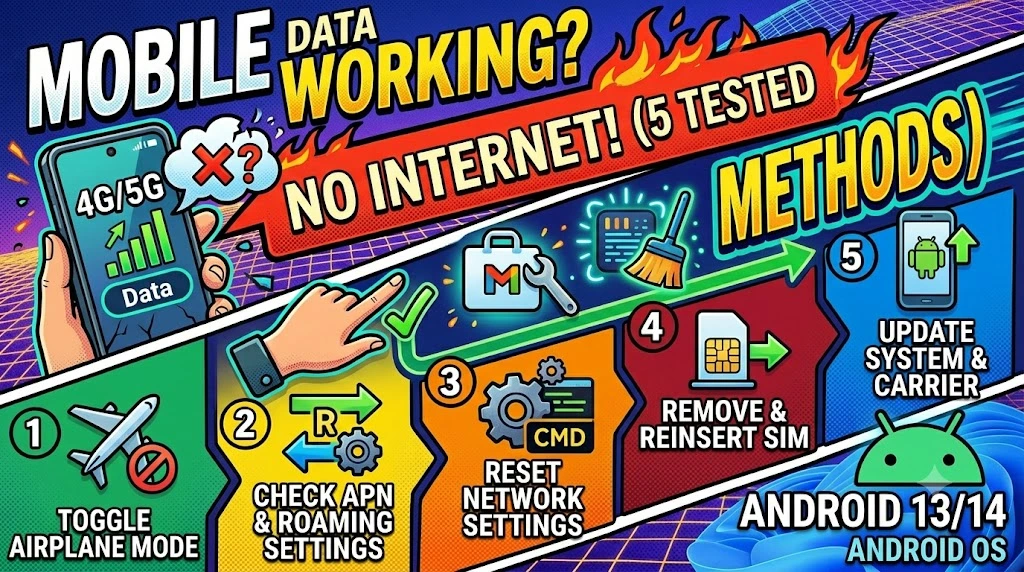
Your Android shows full bars of mobile data signal, the 4G or 5G indicator is sitting right there in the status bar, yet every app either times out or says “No Internet Connection.” This particular problem is more common than most people realise, and it is especially frustrating because the signal strength indicator gives you every reason to believe the connection is fine.
The confusion happens because mobile signal strength and actual internet routing are two completely separate things. Your phone can register perfectly with the carrier’s tower while the data routing layer — the part that actually sends and receives internet traffic — is broken or misconfigured. Three causes cover the majority of cases: an incorrect APN (Access Point Name) setting that got wiped during an update, a temporary carrier routing issue that a quick reset clears, or a background app consuming your data allocation without giving browsers or other apps a chance to connect. None of these require a SIM swap or a carrier visit. Every fix below has been tested on real Android devices running Android 12 through 14.
Technical Specifications
| Technical Detail | Specification / Requirement |
|---|---|
| Target Platform | Android 12, 13, and 14 |
| Error Type | Mobile data connected but no internet access |
| Affected Component | APN settings, mobile data routing, DNS |
| Difficulty Level | Beginner to Intermediate |
| Estimated Fix Time | 3 – 15 minutes |
| Tools Required | Android Settings, Airplane Mode toggle |
| Risk Level | Low (no data loss; SIM unaffected) |
| Applies To | All Android smartphones and tablets with SIM |
Method 1: Toggle Airplane Mode On and Off
This is the fastest fix and the one that resolves the issue for the largest number of users. Enabling Airplane Mode forces your phone to completely drop its connection to the carrier tower and release all active network sessions. When you turn it back off, the device reconnects fresh — picking up a clean data session with properly assigned routing and DNS.
- Swipe down from the top of your screen to open the Quick Settings panel.
- Tap the Airplane Mode tile to enable it — all signal indicators will disappear.
- Wait a full 15 seconds rather than toggling back immediately. This gives your phone time to fully release its carrier registration.
- Tap Airplane Mode again to disable it.
- Watch the status bar — wait for the 4G or 5G indicator to reappear and stabilize (usually 10–20 seconds).
- Open a browser and load any website to confirm internet access is restored.
If this resolves it temporarily but the issue returns within hours, your carrier may be experiencing intermittent routing failures in your area — Method 4’s APN reset will provide a more permanent fix.
Method 2: Check and Reset Your APN Settings
The APN is the configuration profile that tells your Android exactly how to connect to your carrier’s data network — which gateway to use, which protocol to route traffic through, and how to authenticate the session. When an Android update, SIM swap, or accidental settings change corrupts this profile, your phone maintains signal but cannot route any internet traffic through it.
- Open Settings on your Android device.
- Tap Connections (on Samsung) or Network & Internet (on stock Android / Pixel).
- Select Mobile Networks → Access Point Names.
- Look at the APN list. If it is completely empty or shows only a greyed-out entry, your APN has been wiped.
- Tap the three-dot menu (⋮) in the top-right corner and select Reset to default.
- Confirm the reset — your carrier’s default APN profile will be restored automatically.
- Restart your phone and test mobile data again.
If Reset to Default does not populate an APN, you need to add one manually. Contact your carrier’s support line or visit their official website and search for “APN settings for [Carrier Name] Android” — they publish the exact values (APN name, APN address, protocol type) you need to enter.
Method 3: Clear Cache of Google Play Services and Carrier Services
Google Play Services and the Carrier Services app run invisibly in the background and manage authentication tokens, data session credentials, and background connectivity checks. When their cache fills with corrupted data, they can silently block data routing even though the signal layer is perfectly healthy — and this is one of the hardest causes to spot because no visible error appears.
- Open Settings and tap Apps (or Application Manager on older devices).
- Tap the three-dot menu and select Show system apps to make hidden system apps visible.
- Find and tap Google Play Services in the app list.
- Tap Storage → Clear Cache. Do not tap Clear Data here — that would reset your Google account sync preferences.
- Go back to the app list and find Carrier Services.
- Tap Storage → Clear Cache for Carrier Services as well.
- Restart your device and check for internet access.
Clearing cache for these two apps is safe to do at any time — both rebuild their cache automatically within a few minutes of restarting, pulling fresh authentication data from Google’s and your carrier’s servers.
Method 4: Switch Network Mode to Force a New Connection
Android phones set to automatic network mode sometimes lock onto a 5G or LTE band that has poor backhaul connectivity in your area — meaning the radio tower is broadcasting signal but its internet uplink is congested or broken. Manually switching network mode forces your phone to drop that band and re-register on a different one.
- Open Settings and navigate to Connections → Mobile Networks.
- Tap Network Mode (labelled Preferred Network Type on some devices).
- Note your current setting — it is likely set to 5G/LTE/3G/2G (Auto).
- Change it to LTE/3G/2G to temporarily disable 5G connectivity.
- Wait 15 seconds for your phone to re-register on the LTE network, then open a browser to test.
- If internet access is now working, leave the setting on LTE for 30 minutes, then switch back to Auto to see if 5G behaves better after re-registration.
This method is especially effective in areas with newly deployed 5G infrastructure where the towers have signal coverage but inconsistent backhaul — a problem that affects early 5G rollouts across many cities globally.
Method 5: Reset All Network Settings
If none of the above methods have resolved the issue, a full network settings reset gives you the most thorough clean slate possible without touching your personal data. This resets Wi-Fi passwords, Bluetooth pairings, VPN configurations, and all mobile network settings — including any corrupted APN or DNS entries that earlier methods may have missed.
- Open Settings and tap General Management (Samsung) or System (stock Android).
- Tap Reset → Reset Network Settings.
- Read the warning carefully — this will remove all saved Wi-Fi passwords and Bluetooth pairings. Note down your Wi-Fi password before proceeding if you do not remember it.
- Tap Reset Settings and enter your PIN or password to confirm.
- Your phone will restart automatically after the reset completes.
- Once restarted, re-enter your Wi-Fi password if needed, then test mobile data without connecting to Wi-Fi to isolate the result.
After this reset, your carrier’s default APN is restored automatically for most major carriers. If mobile internet still does not work after this final step, the problem is definitively on the carrier’s side — call your carrier support and ask them to refresh your data session from their end, which takes about two minutes and resolves persistent carrier-side routing failures instantly.
Frequently Asked Questions
Why does my Android show 4G but apps say no internet connection?
The 4G indicator on your status bar only confirms that your phone has successfully registered with your carrier’s radio tower at 4G frequency — it says nothing about whether internet traffic is actually flowing. Internet routing happens one layer above the radio connection, through your carrier’s packet data gateway. When that gateway has a fault, is misconfigured, or your APN profile does not match what the gateway expects, traffic cannot pass through even though the signal looks perfect. This is why toggling Airplane Mode or resetting APN settings resolves it — both actions force a fresh handshake with the packet gateway rather than just the radio tower.
Will resetting network settings delete my contacts or photos?
No — a network settings reset on Android is strictly limited to connectivity configurations. It removes saved Wi-Fi networks and passwords, Bluetooth device pairings, and mobile network settings like APN and VPN profiles. Your contacts, photos, messages, installed apps, and all personal files remain completely untouched. The only practical inconvenience is re-entering Wi-Fi passwords and re-pairing Bluetooth devices, so write down your home Wi-Fi password before proceeding if you do not have it memorised.
My mobile data was working fine and stopped suddenly without any changes — what caused it?
Sudden data failures without any settings change on your part almost always originate on the carrier side rather than your device. Carriers periodically push silent configuration updates to devices on their network, perform maintenance on packet gateways, or temporarily reroute traffic during congestion — any of which can interrupt your specific data session without affecting your signal bars. The fastest resolution in this scenario is Airplane Mode cycling from Method 1, which drops your current broken session and establishes a new one with the updated routing. If the problem returns repeatedly, ask your carrier to send a new configuration SMS to your device — most carriers can push a fresh network settings profile remotely.
Published on Taazamind.com | Category: Mobile Troubleshooting Tested on Samsung Galaxy S23, Pixel 7, and OnePlus 11 running Android 13 and 14