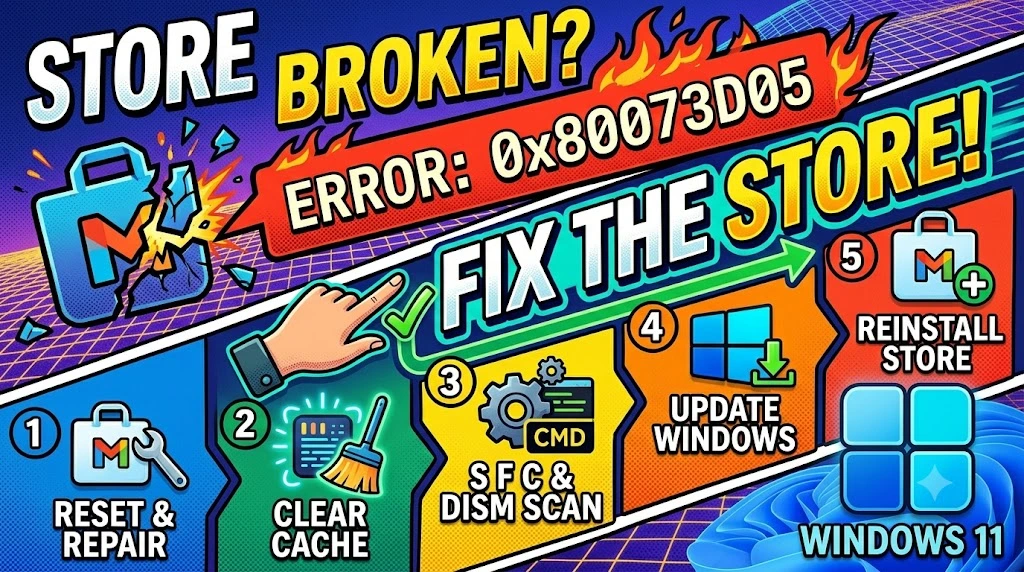
Opening the Microsoft Store to install or update an app and running straight into error code 0x80073D05 is genuinely confusing — the message gives you almost nothing to work with. No clear explanation, no suggested action, just a code and a dead end. If this is happening to you, the error almost always means Windows cannot properly deploy or register the app package because something in the Store’s local infrastructure is broken or out of sync.
Three root causes cover the overwhelming majority of 0x80073D05 cases: a corrupted Microsoft Store cache that contains conflicting package metadata, a partially installed or stuck app registration that Windows cannot overwrite without a reset, and Windows Update components that share infrastructure with the Store and have fallen out of sync after a cumulative update. None of these point to a hardware problem or a Microsoft account issue — the fix lives entirely within your Windows installation. This guide gives you six methods ordered from the fastest single-click solution to the more thorough PowerShell and reset approaches. Most users resolve this at Method 2 or Method 3, so work through them in sequence and you will have the Store functioning again within 15 minutes.
Technical Specifications
| Technical Detail | Specification / Requirement |
|---|---|
| Target Platform | Windows 11 (Home, Pro, Enterprise) |
| Error Code | 0x80073D05 |
| Error Category | Package deployment / app registration failure |
| Affected Component | Microsoft Store, Windows App Package Manager |
| Difficulty Level | Beginner to Intermediate |
| Estimated Fix Time | 5 – 20 minutes |
| Tools Required | WSReset, PowerShell, Settings, Windows Update |
| Risk Level | Low (installed apps and personal data unaffected) |
| Applies To | All Windows 11 builds with Microsoft Store |
Method 1: Run WSReset to Clear the Store Cache
WSReset is Microsoft’s built-in Store cache clearing tool. It wipes the entire local cache that the Store uses to track package states, downloaded chunks, and installation metadata — all of which can become corrupted and trigger 0x80073D05 without any visible warning. This takes about 60 seconds and is always the right first step.
- Press
Windows + Rto open the Run dialog. - Type
wsreset.exeexactly and press Enter. - A blank black Command Prompt window will appear — do not close it. This is normal behavior; WSReset runs silently in the background.
- Wait for the window to close on its own, which typically takes 30–60 seconds.
- The Microsoft Store will launch automatically once the reset is complete.
- Try installing or updating the app that was showing error 0x80073D05 and check if it proceeds.
If the Store opens but the error returns when you attempt the same download, the cache was not the only issue. Move to Method 2 — the underlying package registration needs attention.
Method 2: Use the Windows Store Apps Troubleshooter
Windows 11 includes a dedicated troubleshooter for Store app issues that goes beyond cache clearing — it inspects app registration entries, verifies package integrity hashes, and resets services the Store depends on. It catches a surprisingly wide range of 0x80073D05 triggers automatically.
- Press
Windows + Ito open Settings. - Navigate to System → Troubleshoot → Other troubleshooters.
- Scroll down to find Windows Store Apps in the list and click the Run button next to it.
- Wait while the troubleshooter scans — this typically takes 45–90 seconds.
- Read the result carefully. If it detects and fixes something, click Apply this fix when prompted.
- Restart your PC after the troubleshooter completes, even if it says no issues were found.
- Reopen the Microsoft Store and attempt the installation again.
The troubleshooter is particularly effective when 0x80073D05 appears after a Windows Update, since updates sometimes reset the app service configuration and the troubleshooter restores it automatically.
Method 3: Re-register All Microsoft Store Apps via PowerShell
When a specific app package gets stuck in a broken registration state, Windows cannot install over it or remove it cleanly — and that blockage causes 0x80073D05 for that app and sometimes others. Re-registering all Store app packages via PowerShell forces Windows to rebuild every package’s registration entry from scratch, clearing the stuck state in the process.
- Press
Windows + S, typePowerShell, and right-click Windows PowerShell in the results. - Select Run as administrator — this step will not work without elevated privileges.
- Click Yes on the UAC prompt.
- Carefully type or paste the following command and press Enter:
Get-AppXPackage -AllUsers | Foreach {Add-AppxPackage -DisableDevelopmentMode -Register "$($_.InstallLocation)\AppXManifest.xml"} - Wait while PowerShell processes every installed Store app — you will see a stream of output lines. Some yellow warning messages are normal and can be ignored.
- Do not close the window until the command prompt (
PS C:\>) reappears, confirming it has finished. - Restart your PC and test the Microsoft Store again.
This command is the most targeted fix for 0x80073D05 because it directly addresses the deployment and registration layer where this error code originates. If this does not resolve it, the issue sits deeper in Windows Update components.
Method 4: Reset and Repair Microsoft Store Through App Settings
Windows 11 allows you to repair and reset individual apps directly from Settings without touching the rest of the system. Repairing the Store attempts to fix corrupted files while keeping your login and preferences intact. If repair alone does not work, resetting it wipes the Store back to a factory state — including its local data, login session, and all cached package information.
- Open Settings with
Windows + Iand go to Apps → Installed apps. - Search for
Microsoft Storein the search bar at the top of the app list. - Click the three-dot menu (⋯) to the right of Microsoft Store and select Advanced options.
- Scroll down to the Reset section.
- Click Repair first and wait for it to complete — a checkmark will appear when done.
- Open the Store and test the failing installation. If error 0x80073D05 persists, return here.
- Click Reset (below the Repair button) and confirm by clicking Reset again in the popup.
- Reopen the Store, sign in to your Microsoft account again, and retry the installation.
Always try Repair before Reset. Repair is non-destructive and fixes file-level issues without clearing your account session, whereas Reset is a full wipe that requires signing back in and reconfiguring preferences.
Method 5: Reset Windows Update Components via Command Prompt
The Microsoft Store and Windows Update share significant infrastructure — the same service endpoints, the same local cache folders, and overlapping background services. When Windows Update components become corrupted, they can break Store package deployment and produce error 0x80073D05. Resetting these components manually stops and restarts all related services and renames the corrupted cache folders so Windows rebuilds them cleanly.
- Press
Windows + S, typecmd, right-click Command Prompt, and select Run as administrator. - Run each of the following commands one at a time, pressing Enter after each:
net stop wuauservnet stop cryptSvcnet stop bitsnet stop msiserver - Now rename the corrupted cache folders by running:
ren C:\Windows\SoftwareDistribution SoftwareDistribution.oldren C:\Windows\System32\catroot2 catroot2.old - Restart all services by running:
net start wuauservnet start cryptSvcnet start bitsnet start msiserver - Close Command Prompt and restart your PC.
- Open the Microsoft Store and attempt the installation again.
The renamed .old folders are safe to leave in place — Windows creates fresh replacements automatically. After confirming the Store works correctly for a week, you can delete the .old folders to reclaim disk space.
Method 6: Re-register the Microsoft Store Package Directly via PowerShell
If all previous methods have been applied and 0x80073D05 still appears for a specific app or for the Store itself, re-registering the Store as a standalone package is the most direct remaining fix. This is different from Method 3 — it targets the Store’s own package specifically rather than all apps.
- Open PowerShell as administrator using the same steps as Method 3.
- Paste the following command and press Enter:
Get-AppxPackage -allusers Microsoft.WindowsStore | Foreach {Add-AppxPackage -DisableDevelopmentMode -Register "$($_.InstallLocation)\AppXManifest.xml"} - Wait for the command to complete — it processes only the Store package, so it runs much faster than Method 3.
- Close PowerShell and restart your PC.
- After restarting, open the Microsoft Store and sign in if prompted.
- Navigate to the app that was showing 0x80073D05 and attempt the installation.
If the Store itself opens successfully but a specific third-party app still fails with 0x80073D05, the problem may be with that app’s own package on Microsoft’s servers. Wait 24 hours and retry — publisher-side deployment issues are temporary and resolve without any action on your end.
Frequently Asked Questions
Does error 0x80073D05 mean the app is permanently broken or unavailable?
Not at all. Error 0x80073D05 is a local deployment failure, meaning Windows cannot properly register or install the package on your specific machine at that moment. The app itself and Microsoft’s servers are almost always fine. The error lives entirely within your Windows installation’s package management layer, which is exactly why the WSReset, re-registration, and Windows Update component reset methods above resolve it — they fix the local infrastructure without any involvement from the app’s publisher or Microsoft’s distribution servers.
Why does 0x80073D05 appear after a Windows Update on my PC?
Windows cumulative updates occasionally modify the App Package Manager services, the Store’s local cache structure, or the service accounts that manage app installation. When these components are modified mid-session or the update installs incompletely, the Store loses its reference points for package deployment and throws 0x80073D05 on the next attempt. Method 5, which resets all Windows Update components and renames the SoftwareDistribution cache folder, directly addresses this scenario because it forces Windows to rebuild those modified components from scratch using fresh data from Microsoft’s servers.
The Microsoft Store shows 0x80073D05 only for one specific app — why would a single app trigger this?
A single-app failure usually means that specific app’s local package registration entry is corrupted or stuck in a pending state from a previous failed installation attempt. Windows cannot overwrite a stuck registration without clearing it first. The most targeted fix for this is the PowerShell re-registration in Method 3, which rebuilds the registration entry for all apps including the stuck one. If that does not clear it, open PowerShell as administrator and run Get-AppxPackage *AppName* | Remove-AppxPackage (replacing AppName with the app’s actual name) to fully remove the broken package entry, then reinstall it fresh from the Store.