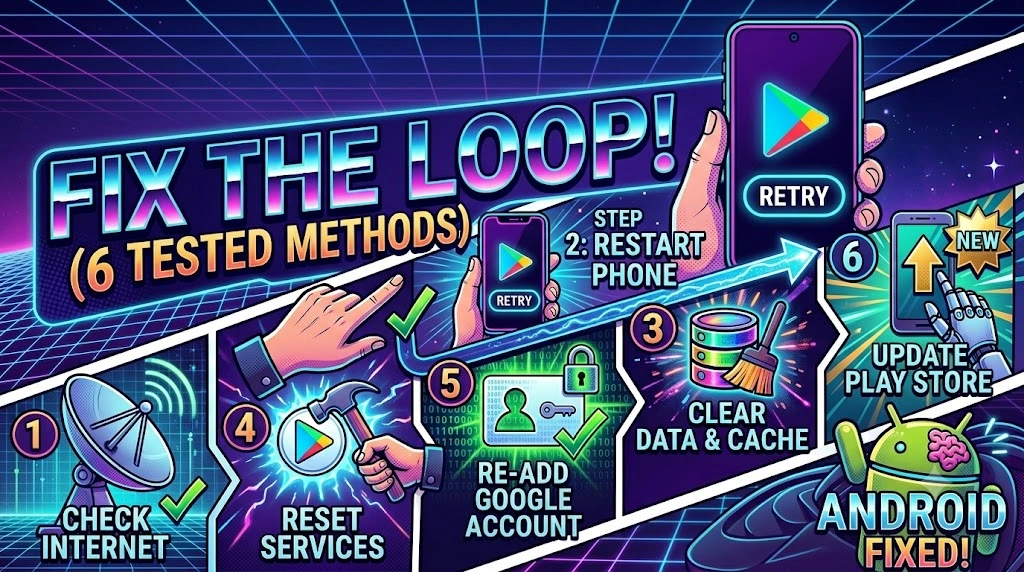
You tap Install or Update on the Play Store, the button changes to Pending, and then absolutely nothing happens. No progress bar, no download activity, no error message — just that single word sitting there indefinitely while your app refuses to move. This is one of those Play Store issues that feels like it should not exist, because the interface gives you no feedback and no way to know whether something is actually happening or the whole process has silently frozen.
The pending loop is not a random glitch. It has three well-documented causes that account for nearly every reported case: Google Play’s background download queue getting jammed by a previous failed download that never properly cleared, the Play Store or Google Play Services cache holding onto corrupted session data that prevents new downloads from initialising, and an active VPN or unstable connection causing the download manager to wait indefinitely for a stable handoff that never comes. Your installed apps and account data are completely safe throughout this — the problem lives entirely within Play Store’s download management layer. Every method below addresses a specific layer of this problem, ordered from the simplest toggle to the deeper service-level fixes that resolve even the most stubborn cases.
Technical Specifications
| Technical Detail | Specification / Requirement |
|---|---|
| Target Platform | Android 10, 11, 12, 13, and 14 |
| Error Type | Play Store download stuck on “Pending” indefinitely |
| Affected Component | Google Play Store, Play Services, Download Manager |
| Difficulty Level | Beginner to Intermediate |
| Estimated Fix Time | 3 – 20 minutes |
| Tools Required | Android Settings, Play Store app |
| Risk Level | Low (no data loss; installed apps unaffected) |
| Applies To | All Android devices with Google Play Store |
Method 1: Cancel the Download and Restart It Cleanly
Before touching any settings, force-cancel the stuck download and requeue it fresh. Play Store’s download queue sometimes locks a slot for a specific app without actually downloading anything, and cancelling clears that lock immediately.
- Open the Google Play Store on your Android device.
- Tap your profile icon in the top-right corner of the screen.
- Select Manage apps & device from the dropdown menu.
- Tap the Manage tab and filter by Updates available or Installed to locate the pending app.
- Tap the app that is stuck on Pending to open its store page.
- Tap the Cancel button that appears beneath the Pending status — this removes it from the active download queue.
- Wait 10 seconds, then tap Install or Update again to requeue it fresh.
- Watch for 30 seconds to confirm a progress bar appears this time.
If the download starts moving after this, the queue had a one-time lock that the cancel cleared. If it returns to Pending immediately without any progress, the issue is deeper in the cache layer — move to Method 2.
Method 2: Clear Cache and Data for Google Play Store
The Play Store stores session tokens, download chunk metadata, and queue state in its local cache. When any of these entries become corrupted — which happens frequently after an interrupted download or a Play Store auto-update — the download manager reads broken state data and freezes new downloads at the Pending stage without explanation.
- Open Settings on your Android device.
- Tap Apps (labelled Application Manager on some older Samsung devices).
- Tap the three-dot menu (⋮) in the top-right corner and select Show system apps to reveal hidden system applications.
- Find and tap Google Play Store in the app list.
- Tap Storage to open the storage details screen.
- Tap Clear Cache first — this removes temporary files without affecting your account login.
- Tap Clear Data next and confirm — this resets the Play Store completely, including your search history and download queue. You will need to accept Play Store’s terms once when it reopens.
- Open the Play Store, wait for it to fully load, and retry the pending download.
Always clear cache before clearing data — cache alone resolves this in the majority of cases, and it is the less disruptive option. Clear Data is the escalation when cache alone does not work.
Method 3: Clear Cache and Data for Google Play Services
Google Play Services runs underneath the Play Store and handles authentication, licence verification, and the actual download scheduling. When Play Services has corrupted cache entries, it blocks new downloads at the queue level — which is why clearing the Play Store alone sometimes does not help. You need to clear both.
- Open Settings → Apps.
- Tap the three-dot menu and select Show system apps if you have not already done so.
- Scroll through the list and tap Google Play Services — not Google Play Store, which is a separate entry.
- Tap Storage on the Play Services screen.
- Tap Clear Cache — note that Clear Data is intentionally greyed out for Play Services on most devices, which is normal and expected behaviour.
- Go back to the app list and repeat Steps 3–5 for Google Services Framework as well — this is the lower-level service that Play Services depends on for authentication.
- Restart your Android device completely.
- After restarting, open the Play Store and attempt the download again.
Clearing Google Services Framework cache specifically resets the device’s Play authentication ticket, which forces a fresh token exchange when the Play Store next contacts Google’s servers — this is why a restart is important after this step.
Method 4: Check Available Storage and Free Up Space
The Play Store’s download manager checks available storage before initiating any download. If your device storage is critically low — typically below 500 MB of free space — Play Store queues the download as Pending and waits for space to become available, but displays no notification or warning explaining why. The Pending status is indefinite in this scenario.
- Open Settings and tap Battery and Device Care (Samsung) or Storage (stock Android).
- Check the available storage figure at the top of the screen — if it shows less than 1 GB free, storage is your problem.
- Tap Storage → Clean Now or Free Up Space if your device offers an automatic cleanup option.
- To manually free space, open Google Photos and delete old screenshots and duplicate photos you no longer need.
- Open Settings → Apps and look for large apps you rarely use — tap each one and select Uninstall to reclaim space.
- Open Files by Google (free from the Play Store if not pre-installed) and tap Clean to remove junk files, duplicate downloads, and large unused files automatically.
- Once you have freed at least 1–2 GB, return to the Play Store and retry the pending download.
A practical rule to avoid this situation going forward: keep at least 10% of your total storage free at all times. Android’s system processes and app updates need that headroom to operate without queueing issues.
Method 5: Disable VPN and Check Your Network Connection
VPNs intercept all network traffic including Play Store downloads and route it through an external server. When that VPN server is slow, geographically distant, or has a content policy that blocks Google’s download CDN endpoints, Play Store receives no response from Google’s servers and holds the download in Pending indefinitely while waiting for a connection that never stabilises.
- Open your VPN app if one is active and tap Disconnect to fully disable it.
- Open Settings → Connections → VPN and confirm no VPN shows as Connected.
- Switch from mobile data to Wi-Fi, or from Wi-Fi to mobile data — whichever you are not currently using — to eliminate a network-specific issue.
- Toggle Airplane Mode on for 15 seconds, then turn it off again and wait for a stable connection.
- Open the Play Store and retry the download immediately after reconnecting, before any background apps consume bandwidth.
- If the download proceeds without the VPN, the VPN server was the bottleneck. Consider switching to a faster VPN server location or temporarily disabling the VPN during large downloads.
Some corporate or school Wi-Fi networks also block Google’s download servers at the firewall level, producing identical Pending behaviour. Switching to mobile data in those environments instantly resolves it.
Method 6: Remove and Re-Add Your Google Account
When all cache-clearing and network fixes fail, the issue often lies in a corrupted Google account authentication token stored on the device. The Play Store cannot authorise the download without a valid token, so it stalls at Pending permanently. Removing and re-adding your account forces Android to request a completely fresh set of authentication credentials from Google’s servers.
- Open Settings → Accounts and Backup (Samsung) or Passwords & Accounts (stock Android).
- Tap your Google account from the accounts list.
- Tap the three-dot menu (⋮) or Remove Account button and confirm removal — this does not delete any data from Google’s servers, only the local account session on this device.
- Restart your Android device after the account is removed.
- After restarting, go back to Settings → Accounts and tap Add Account → Google.
- Sign in with your Google account credentials.
- Wait 2–3 minutes for Google Play Services to fully resync your account in the background.
- Open the Play Store and attempt the previously pending download.
This step also fixes cases where a password change on another device invalidated the stored token on your Android — a scenario that Play Store never surfaces with a clear error message, making the Pending loop the only visible symptom.
Frequently Asked Questions
Why does the Play Store show Pending for some apps but not others?
Play Store prioritises downloads based on a combination of factors: app size, network conditions, available storage, and whether other downloads are actively running. Larger apps get queued behind smaller ones during bandwidth-limited conditions, and apps you scheduled for later installation sit at lower priority than active downloads. If only one specific app is stuck on Pending while others download normally, that app’s specific package may have a temporary issue on Google’s CDN — cancelling and requeuing it as described in Method 1 usually resolves single-app Pending issues within seconds.
Will clearing Play Store data sign me out of my Google account completely?
No. Clearing Play Store data resets the app’s local preferences, download history, and session cache — but your Google account remains signed in at the system level through Google Play Services, which is a separate process. When you reopen the Play Store after clearing data, it reads your account credentials from Play Services automatically and logs you back in without any action on your part. The only things you genuinely lose are your Play Store search history and wishlist items saved locally.
The Play Store shows Pending only on Wi-Fi but works on mobile data — what does that mean?
This is a definitive sign that your Wi-Fi router is blocking Google’s download servers, either through a firewall rule, a content filter, or DNS filtering. Many home routers with parental controls or third-party DNS settings block Google’s dl.google.com and play.googleapis.com endpoints unintentionally. Log into your router’s admin panel — usually at 192.168.1.1 — and check your DNS settings and any active content filtering. Switching your router’s DNS to Google’s public servers (8.8.8.8 and 8.8.4.4) resolves this in the majority of router-side blocking cases without requiring any changes on your Android device.
Published on Taazamind.com | Category: Mobile Troubleshooting Tested on Samsung Galaxy A54, Pixel 7a, and Redmi Note 12 running Android 12, 13, and 14