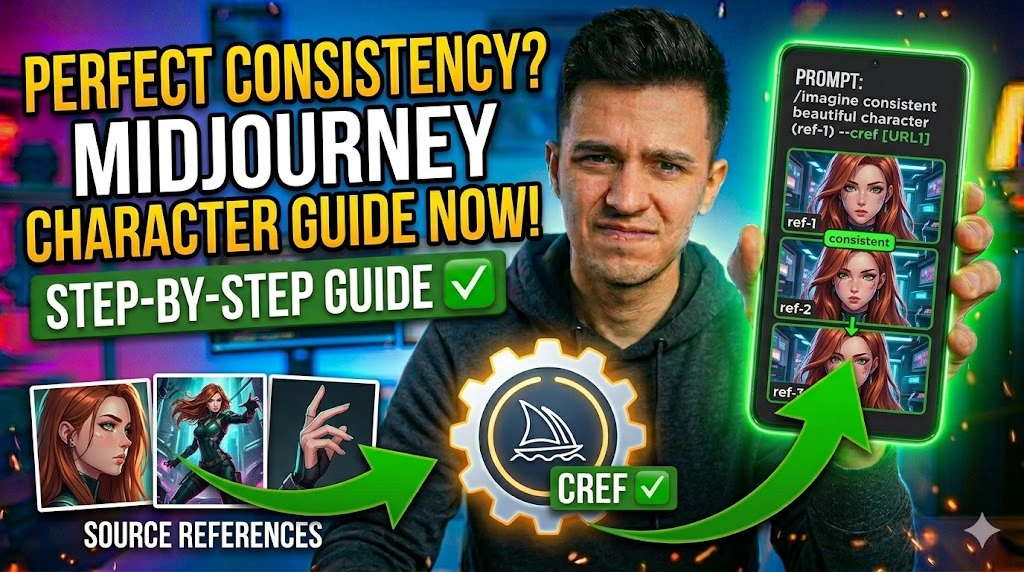
If you’ve ever generated a character in Midjourney and then struggled to recreate that same face, outfit, or style across multiple images, you’re not alone — this is one of the most common frustrations among Midjourney users working on comics, brand mascots, storyboards, or social media content.
The core problem comes down to three things: Midjourney’s generative nature means it reinterprets your prompt every single time, most users don’t know about the --cref (Character Reference) parameter that was specifically built to solve this, and even those who’ve heard of it often misuse reference image weight or mix it with incompatible style prompts that override the character entirely.
This guide walks you through exactly how Character References work, how to combine them with Style References for full creative control, and how to avoid the common mistakes that produce inconsistent results. Everything here is tested on Midjourney V6 and Niji 6.
Technical Specifications
| Technical Detail | Specification / Requirement |
|---|---|
| Target Platform | Midjourney V6, Niji 6 (Discord & Web) |
| Feature Used | --cref (Character Reference), --cw (Character Weight) |
| Skill Level | Beginner to Intermediate |
| Midjourney Plan Required | Basic plan or above |
| Estimated Setup Time | 10 to 20 minutes |
| Works With | Portrait, full-body, scene-based prompts |
| Known Limitation | Does not preserve exact clothing across all angles |
Method 1: Generate Your “Anchor” Character Image First
Before you can use Character References, you need one strong, clean reference image to anchor all future generations. The quality and specificity of this first image directly determines how consistent every follow-up generation will be — so don’t rush it.
- Open Midjourney on Discord or the web interface and start a new
/imagineprompt. - Write a detailed character description focusing on facial features, hair color, skin tone, and distinctive traits. For example:
a young woman with short auburn hair, green eyes, freckles, wearing a denim jacket, soft natural lighting, portrait style --v 6. - Run the prompt and generate a full grid of four variations.
- Upscale the variation that best captures the face and features you want to lock in — use the U1–U4 buttons below the grid.
- Right-click the upscaled image and select “Copy Image Address” (Chrome) or “Copy Image Link” to get the direct URL. You’ll need this URL for the
--crefparameter.
Keep this reference image saved locally as well. Treat it as your character’s master file.
Method 2: Use the –cref Parameter in Your Next Prompt
With your reference image URL ready, you can now instruct Midjourney to use that character’s appearance as a visual anchor. The --cref parameter tells the model to extract face, hair, and skin data from your reference and apply it to a new scene or pose.
- Start a new
/imaginecommand in Midjourney. - Write your new scene prompt first — describe the setting, pose, and mood. Example:
a young woman sitting at a café reading a book, warm afternoon light, street photography style. - Add the
--crefparameter at the end of your prompt, followed by the image URL you copied:--cref https://your-image-url-here. - Submit the prompt and review the generated grid. The character’s face and hair should closely match your reference.
- Compare the output against your anchor image side by side before upscaling to confirm consistency.
If the face resembles but doesn’t exactly match your reference, don’t panic — the next method gives you precise control over how strongly the reference influences the output.
Method 3: Adjust Character Weight with –cw for Better Accuracy
The --cw parameter (Character Weight) controls how strictly Midjourney follows your reference image. It ranges from 0 to 100, where 100 applies maximum facial fidelity and 0 essentially ignores the reference. Most users never touch this and end up with inconsistent results because the default weight of 100 sometimes over-constrains the model in complex scene prompts.
- Take your previous
--crefprompt and add--cwfollowed by a number between 0 and 100 at the very end. - Start with
--cw 80for most portrait and scene prompts — this balances character fidelity with scene flexibility. - Lower to
--cw 50if your scene involves dramatic lighting, side profiles, or non-standard angles that are fighting the reference. - Use
--cw 100only when you need strict facial matching in straightforward front-facing or three-quarter poses. - Run two variations — one at your chosen weight and one 20 points higher — and compare both grids before upscaling.
Finding your character’s ideal --cw value is a one-time calibration. Once you know the sweet spot, note it down and use it consistently across every prompt for that character.
Method 4: Combine –cref with –sref for Full Character + Style Consistency
If you’re building a series — a comic, a product campaign, or a storyboard — you need both the character and the visual style to stay consistent across images. Using --cref alone locks the character but lets the art style drift. Pairing it with --sref (Style Reference) solves both problems simultaneously.
- Choose a previously generated image whose art style, color palette, and rendering quality you want to replicate — this becomes your style reference.
- Copy the URL of your style reference image the same way you copied the character reference URL earlier.
- Build your prompt with both parameters:
[scene description] --cref [character URL] --sref [style URL] --cw 80. - Optionally add
--sw(Style Weight) to control how strictly the style is applied, just like--cwfor characters. A value of--sw 100is a strong starting point. - Submit and review whether both the character and the overall visual language match your references before upscaling.
This combination is the professional workflow. Once both reference URLs are saved and your weight values are calibrated, generating new scenes becomes as fast as writing the scene description itself.
Method 5: Build a Character Reference Sheet for Multi-Angle Consistency
Single-image references work well for frontal portraits but struggle with side profiles, back views, or dynamic poses. A multi-angle character sheet gives Midjourney more data to work with, dramatically improving consistency across complex compositions.
- Generate your anchor character in three distinct poses using your established prompt: front-facing, three-quarter view, and side profile — keeping lighting and style identical across all three.
- Upscale all three images and save them locally.
- Upload all three images to a public image host or directly to Discord by dragging them into the message input box.
- Copy the URLs of all three uploaded images.
- Add multiple
--crefURLs in a single prompt by separating them with spaces:--cref [url1] [url2] [url3]. Midjourney blends the reference data from all three, producing significantly more reliable results across varied angles and poses.
This multi-image reference approach is particularly powerful for character-driven projects where your subject will appear in many different environments and orientations.
Frequently Asked Questions
Does –cref work across different Midjourney model versions?
The --cref parameter works reliably on Midjourney V6 and Niji 6, which are the current recommended versions. It does not function on V5 or earlier models — those predate the feature entirely. If you’re using the Niji model for anime-style content, --cref still applies, though the model interprets character features through its own stylistic lens, so slight stylization of your reference is expected and normal. Always confirm your active model version using --v 6 or --niji 6 at the end of your prompt.
Why does my character’s clothing change even when I use –cref?
By design, --cref prioritizes face, hair, and skin tone — it doesn’t lock clothing. Midjourney extracts identity markers rather than outfit details. To preserve specific clothing, describe it explicitly in every prompt using precise language: fabric type, color, fit, and distinguishing features. For very specific outfits, include a full-body reference image in your --cref parameter alongside a portrait reference so the model has outfit context to draw from.
Can I use someone else’s image as a character reference?
Technically, Midjourney allows any image URL as a --cref input, but using photos of real, identifiable people without their consent raises serious ethical and legal concerns. Midjourney’s Terms of Service also prohibit generating content that could be used to impersonate or misrepresent real individuals. For professional or commercial projects, always use original images you generated yourself or have explicit rights to, keeping your workflow both ethical and legally clean.