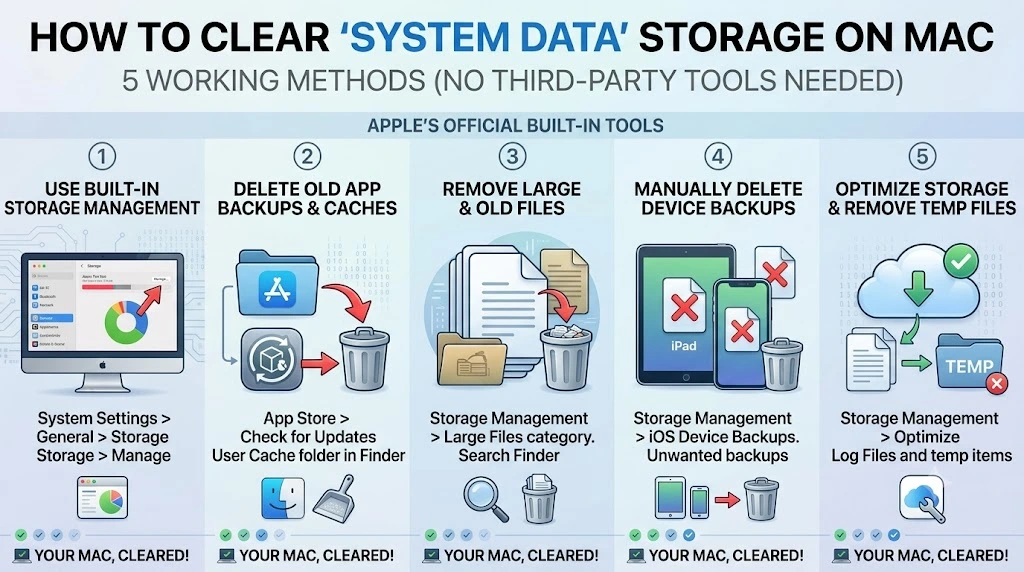
Category: OS & Software Fixes | Website: Taazamind.com
If you’ve opened Apple Menu → About This Mac → Storage and seen a massive grey “System Data” bar eating 20, 40, or even 60+ GB, you’re not alone — and no, your Mac isn’t broken. System Data on macOS is a catch-all bucket that accumulates cached files, old iOS backups, Xcode device support files, Time Machine local snapshots, log files, and piles of application leftovers that macOS doesn’t neatly categorize elsewhere. The frustrating part? Apple doesn’t give you a single “clean this up” button.
Most guides immediately push you toward CleanMyMac or similar paid apps — but you genuinely don’t need them. macOS has native tools across Terminal, Finder, and System Settings that can reclaim gigabytes safely. This guide walks you through five tested, step-by-step methods ordered from simplest to most technical, so you can start with the easiest approach and go deeper only if you need to. No third-party software required.
Technical Specifications
| Technical Detail | Specification / Requirement |
|---|---|
| Target Platform | macOS Ventura, Sonoma, Sequoia (methods apply to Monterey with minor UI differences) |
| Problem Type | Excessive System Data storage consumption |
| Difficulty Level | Easy to Intermediate |
| Estimated Fix Time | 15 – 45 minutes depending on methods used |
| Tools Required | Built-in macOS utilities only (Finder, Terminal, System Settings) |
| Risk Level | Low — all methods target user-generated cache/temp files |
| Requires Admin Access | Yes (for Terminal-based methods) |
| Backup Recommended | Yes — Time Machine or manual backup before Terminal steps |
Method 1: Delete Local Time Machine Snapshots via Terminal
This is almost always the biggest offender. When Time Machine can’t reach your backup drive, macOS stores local snapshots directly on your internal disk. These count toward System Data and can stack up silently over weeks.
- Open Terminal from Applications → Utilities (or use Spotlight: ⌘ + Space → type “Terminal”).
- Type the following command and press Return to list all local snapshots:
tmutil listlocalsnapshots /
- Review the output — you’ll see entries like
com.apple.TimeMachine.2024-11-15-083201. Each one is a snapshot consuming disk space. - Delete all local snapshots at once by running:
sudo tmutil deletelocalsnapshots /
- Enter your administrator password when prompted (the cursor won’t move — that’s normal).
- Wait for the command to finish, then recheck your storage in System Settings → General → Storage.
Why this works: Local snapshots are legitimate backups stored temporarily on your Mac. Deleting them is completely safe — they’ll be recreated next time Time Machine runs a backup to your external drive.
Method 2: Clear the System and User Cache Folders
macOS and apps accumulate cache files in two locations: the system-level Library cache and your user-level Library cache. Over time these grow into several gigabytes of stale data.
- Open Finder and press ⌘ + Shift + G to open the “Go to Folder” dialog.
- Type
~/Library/Cachesand press Return to navigate directly to your user cache folder. - Select all contents inside with ⌘ + A, then right-click and choose Move to Trash.
- Do not delete the
Cachesfolder itself — only its contents. macOS will rebuild what it needs on next launch. - Repeat steps 1–3 for the system path: type
/Library/Cachesin the Go to Folder dialog. - Empty the Trash once done (Finder menu → Empty Trash, or right-click the Trash icon).
- Restart your Mac so apps can regenerate their fresh cache files cleanly.
Why this works: Cache files are meant to speed up apps, but stale caches from deleted or updated apps are just dead weight. macOS rebuilds caches on demand, so clearing them causes no data loss.
Method 3: Remove Old iOS and iPhone Backups
If you’ve ever backed up an iPhone or iPad to your Mac via Finder, those backups sit in System Data — and they’re often several gigabytes each.
- Open Finder from the Dock.
- Connect your iPhone or iPad (or skip this step — you can manage backups without a connected device).
- In the Finder sidebar under Locations, click your device name if connected. Alternatively, go to Finder → Preferences → Sidebar and make sure iOS devices are enabled.
- Click your device in the sidebar, then click Manage Backups in the General tab.
- Right-click any old backup you want to remove and select Delete Backup.
- Confirm deletion when prompted. Repeat for all outdated backups.
Alternative path without a device connected:
- Open Terminal and navigate to the backup folder:
open ~/Library/Application\ Support/MobileSync/Backup/
- Identify old backup folders (named with long alphanumeric strings — check modification dates).
- Move outdated folders to Trash and empty it.
Method 4: Clean Up Xcode Device Support and Derived Data
If you use Xcode for development, two folders are notorious storage hogs: Device Support files (downloaded for each iOS version) and DerivedData (build artifacts).
- Open Finder and press ⌘ + Shift + G.
- Type
~/Library/Developer/Xcode/and press Return. - Open the
iOS DeviceSupportfolder — you’ll find folders for every iOS version you’ve ever debugged on. - Delete all folders except the one matching your current device’s iOS version. These are regenerated automatically when needed.
- Go back to the Xcode folder and open
DerivedData. - Select and delete everything inside DerivedData. These are build caches Xcode recreates from source code.
- Open Xcode after cleanup, go to Xcode → Settings → Platforms, and remove simulator runtimes for iOS versions you no longer target.
Why this works: DeviceSupport files alone can reach 20–30 GB on an active development machine. They’re device-specific debug symbols — not app data — so removing outdated versions has zero impact on your projects.
Method 5: Clear System Log Files and Diagnostic Reports
macOS generates logs and crash diagnostics continuously. While individual files are small, accumulated logs over months can add up significantly — and they live squarely inside System Data.
- Open the Console app from Applications → Utilities.
- Click “All Messages” in the sidebar to get an overview of log volume.
- Close Console and open Terminal for the actual cleanup.
- Run this command to remove user diagnostic reports:
rm -rf ~/Library/Logs/*
- Run this to clear system crash reports (requires admin):
sudo rm -rf /Library/Logs/DiagnosticReports/*
- Run this to remove your own crash reports:
rm -rf ~/Library/Logs/DiagnosticReports/*
- Restart your Mac. macOS will begin generating fresh logs from this point forward.
How to Verify Your Results
After completing the methods above, check your storage gains:
- Open System Settings → General → Storage.
- Wait 30–60 seconds for macOS to recalculate — the bar updates slowly.
- Compare the System Data value against what it was before. Most users see 10–40 GB reclaimed after Methods 1 and 4 alone.
Frequently Asked Questions
Why does System Data keep growing back even after I clear it?
System Data is a living category — macOS and your apps are constantly writing new caches, logs, and snapshots. Time Machine snapshots rebuild every 24 hours if your backup disk isn’t connected. App caches regrow as you use applications. The practical approach is to run Methods 1 and 2 every 1–2 months as light maintenance, rather than expecting a permanent fix. If a specific app is the culprit, check its own preferences for a built-in cache clearing option first.
Is it safe to delete everything inside ~/Library/Caches?
Yes — for your user-level cache folder, it is safe to delete all contents. Applications store temporary data there for performance reasons, not essential user data. The worst outcome is a slightly slower app launch right after clearing, while it rebuilds its cache. Never delete the Caches folder itself, and never clear caches for apps that are currently running. Quit all apps before clearing, then restart afterward.
How is “System Data” different from “Other” storage on macOS?
In older macOS versions (pre-Monterey), the mystery category was called “Other.” Apple renamed and reorganized it into “System Data” starting with macOS Monterey. System Data specifically captures files macOS doesn’t classify under Apps, Documents, Photos, or iCloud Drive — including virtual machine disk images, Time Machine snapshots, developer files, and application support data. “Other” on older systems was slightly broader and included fonts and plugins. The cleanup methods remain essentially the same across both labeling schemes.