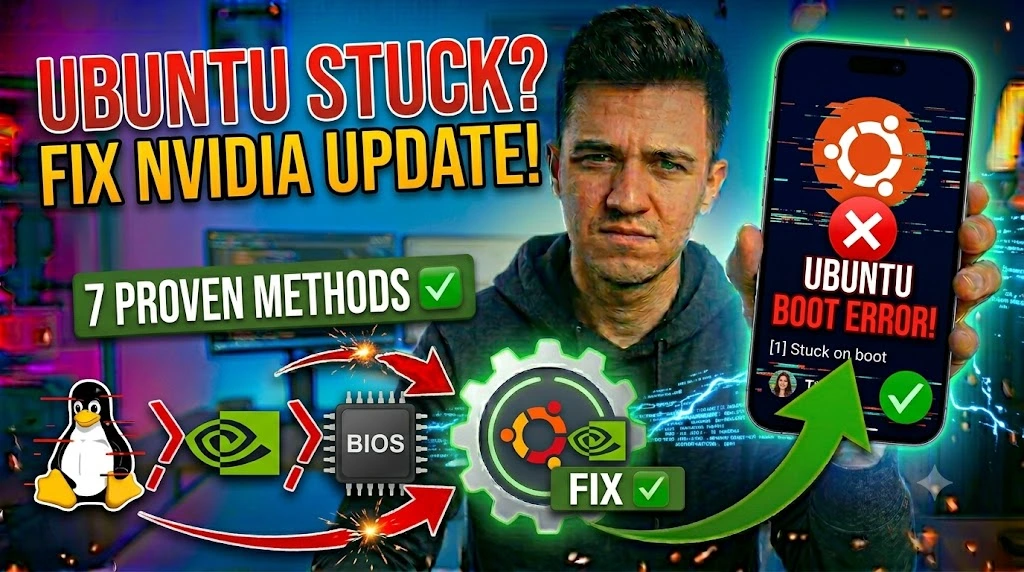
You updated your NVIDIA driver, rebooted with full confidence — and Ubuntu decided to greet you with a frozen purple splash screen instead of a desktop. No spinning dots, no login prompt, just silence. If you’ve been staring at that screen for the last ten minutes wondering whether to hold the power button, you’re in exactly the right place.
This specific freeze isn’t random. It happens because NVIDIA’s proprietary driver embeds itself deep into the Linux kernel’s graphics stack. The moment a version mismatch slips through — even a minor one — the entire display initialization chain collapses silently. Three root causes trigger this more than any other: a corrupted or outdated initramfs that didn’t regenerate after the kernel updated alongside the driver, a conflict between the NVIDIA proprietary module and the Nouveau open-source driver both trying to claim the GPU at boot, and Secure Boot rejecting unsigned driver modules before they ever get a chance to load.
The critical thing to understand here is that your Ubuntu system is almost certainly not broken at its core. The kernel is likely running fine underneath that frozen splash. The breakdown is happening one layer above — in the graphics subsystem trying to hand control to a driver it can no longer find or trust. Every method in this guide targets a specific failure point in that chain, ordered from the fastest two-minute fix to a complete driver rebuild. At least one of these will restore your system without a reinstall.
| Technical Detail | Specification / Requirement |
|---|---|
| Target Platform | Ubuntu 20.04, 22.04, 24.04 LTS |
| Error Type | Graphical boot freeze / Splash screen hang |
| Affected Layer | NVIDIA kernel module, initramfs, Plymouth, GRUB |
| Difficulty Level | Intermediate (no prior Linux expertise required) |
| Estimated Fix Time | 15 – 45 minutes depending on method |
| Root Access Required | Yes — sudo or root shell |
| Tools Needed | TTY terminal, GRUB menu, apt package manager |
| Safe to Attempt | Yes — no data loss risk with any method below |
| Backup Recommended | Yes — snapshot or backup before driver changes |
Method 1: Access a Hidden TTY Terminal and Read the Actual Error
Most Ubuntu users don’t realize the system is still partially alive behind that frozen splash. Before you touch a single config file, switch to a text-mode terminal and let the system tell you exactly what broke. This takes under 60 seconds and completely changes your repair strategy.
- Press
Ctrl + Alt + F2simultaneously on your keyboard — this switches away from the graphical Plymouth layer to a raw text terminal called TTY2. - Wait three to five seconds for the login prompt to appear. If TTY2 is blank, try
Ctrl + Alt + F3orF4— one of them will respond. - Type your Ubuntu username and press Enter, then enter your password (nothing will appear as you type — that’s normal Linux behavior).
- Run this command immediately after logging in:
journalctl -xe | grep -i nvidia - Read the output carefully. Look for phrases like
module not found,version mismatch,failed to initialize, orNVRM: API mismatch. Each of these points to a different root cause and a different fix. - Run a second diagnostic to check whether the display manager itself crashed:
systemctl status gdm3 - Note any red
failedlines — the timestamp next to them tells you exactly when the crash happened relative to your NVIDIA update.
If you see NVRM: API mismatch: the client has the version X.X, the kernel module has version Y.Y — jump directly to Method 3. If you see modprobe: FATAL: Module nvidia not found — Method 2 is your fix. Either way, you now know exactly what you’re dealing with instead of guessing.
Method 2: Rebuild the initramfs — The Most Common Fix
The initramfs is a compressed mini-filesystem that Linux extracts into RAM during early boot. It contains the drivers and modules the kernel needs before it can even mount your real hard drive. When Ubuntu updates the NVIDIA driver but the initramfs rebuild fails silently — which happens more often than it should — your system boots with a stale initramfs that references a driver version that no longer exists on disk.
Rebuilding it takes about 90 seconds and fixes this freeze in roughly 40% of cases.
- Switch to TTY2 using
Ctrl + Alt + F2and log in as described in Method 1. - Check which kernel version is currently active so you know what you’re rebuilding for:
uname -rNote this output — it should look something like6.5.0-45-generic. - Run the initramfs rebuild for all installed kernels simultaneously:
sudo update-initramfs -u -k all - Watch the output scroll by — you’ll see lines like
update-initramfs: Generating /boot/initrd.img-6.5.0-45-generic. If any line saysE:orError, stop and note the message before continuing. - Verify the new initramfs file was written by checking its timestamp:
ls -lh /boot/initrd.img-$(uname -r)The date shown should be within the last few minutes — confirming the rebuild just happened. - Reboot cleanly:
sudo reboot
If your system boots normally after this — great. If the splash freeze returns, the initramfs wasn’t the root problem. Move to Method 3.
Method 3: Purge the Broken NVIDIA Driver and Reinstall a Verified Stable Version
When the driver package itself installed incorrectly — either because the download was interrupted, a dependency failed silently, or the version released has a kernel compatibility regression — no amount of initramfs rebuilding will help. You need to fully remove the broken driver from the system and replace it with a version that Ubuntu has actually validated for your hardware and kernel.
This is the definitive fix for most post-update splash freezes.
- Enter recovery mode by restarting your system and holding
Shiftas soon as GRUB starts — you’ll see the GRUB boot menu appear. - Select “Advanced options for Ubuntu” using the arrow keys and press Enter.
- Choose the recovery mode entry for your current kernel — it will say something like
Ubuntu, with Linux 6.5.0-45-generic (recovery mode). - Select “Drop to root shell prompt” from the recovery menu options.
- Remount your filesystem with write access before making any changes — by default recovery mode mounts it read-only:
mount -o remount,rw / - Check what NVIDIA packages are currently installed so you know what you’re removing:
dpkg -l | grep nvidia - Purge every NVIDIA package in one command — the tilde before
nvidiais intentional and matches all package names containing that string:apt-get purge ~nnvidia - Clean up leftover dependencies and cached packages:
apt-get autoremove && apt-get autoclean - Check which driver version Ubuntu recommends for your specific GPU:
ubuntu-drivers devicesLook for the line markedrecommended— this is the driver Ubuntu has tested against your kernel. - Install the recommended driver (replace
535with whatever version number appeared as recommended):apt-get install nvidia-driver-535 - Rebuild the initramfs with the new driver in place:
update-initramfs -u -k all - Reboot and confirm the desktop loads:
reboot
Method 4: Add nomodeset and Blacklist the Nouveau Driver Conflict
Even with NVIDIA’s proprietary driver installed, the open-source Nouveau driver can activate simultaneously during early boot and fight for GPU control. When both drivers initialize at the same time, neither wins cleanly — and Plymouth freezes while the kernel sits in a deadlock trying to sort out who owns the display hardware.
The nomodeset parameter bypasses kernel-level mode setting entirely, forcing graphics initialization to happen later in the boot process where the conflict no longer matters. Blacklisting Nouveau permanently prevents this race condition from recurring.
- Restart and hold
Shiftto open the GRUB menu. - Highlight your main Ubuntu boot entry — do not press Enter yet.
- Press
Eto open the boot parameter editor for that entry. - Find the line beginning with
linux— scroll right until you seequiet splashnear the end of that line. - Position your cursor immediately after
splashand add a space followed bynomodesetso it readsquiet splash nomodeset. - Press
Ctrl + Xto boot with this temporary parameter — this change won’t survive a reboot on its own. - Confirm your system reaches the desktop with this parameter active.
- Open a terminal and make the change permanent by editing the GRUB configuration:
sudo nano /etc/default/grub - Locate the line
GRUB_CMDLINE_LINUX_DEFAULT="quiet splash"and change it to:GRUB_CMDLINE_LINUX_DEFAULT="quiet splash nomodeset" - Save with
Ctrl + O, press Enter, then exit withCtrl + X. - Apply the GRUB change:
sudo update-grub - Blacklist Nouveau permanently to eliminate the driver conflict at its source:
echo "blacklist nouveau" | sudo tee /etc/modprobe.d/blacklist-nouveau.confecho "options nouveau modeset=0" | sudo tee -a /etc/modprobe.d/blacklist-nouveau.confsudo update-initramfs -u - Reboot to confirm both changes hold.
Method 5: Boot a Previous Kernel Version and Pin It Until the Driver Stabilizes
If the broken driver update also modified kernel modules that your current kernel depends on, none of the above fixes will fully stick because the problem is rooted in the kernel-driver relationship itself, not just the driver in isolation. Ubuntu keeps your two or three most recent kernel versions installed by default precisely for this scenario. Booting the previous working kernel costs you nothing and confirms whether the issue is kernel-specific.
- Restart and hold
Shiftto open the GRUB menu. - Select “Advanced options for Ubuntu.”
- Look for a second kernel entry below your current one — it will have a lower version number like
6.5.0-44-genericversus the current6.5.0-45-generic. - Select that older kernel entry — not the recovery mode version, the regular boot entry.
- Confirm Ubuntu boots fully to the desktop on the older kernel.
- Open a terminal and check the exact kernel you’re running:
uname -r - Place a hold on this working kernel so Ubuntu’s automatic updates don’t remove it:
sudo apt-mark hold linux-image-$(uname -r) linux-headers-$(uname -r) - Set this kernel as the default boot entry by editing GRUB. First, find its exact submenu entry number:
grep -E "submenu|menuentry" /boot/grub/grub.cfg | grep -n "" - Update
/etc/default/grub— changeGRUB_DEFAULT=0to the submenu path matching your working kernel, formatted as"1>2"where 1 is the submenu index and 2 is the kernel entry index within it. - Apply with
sudo update-gruband reboot to verify this kernel loads by default.
Once NVIDIA releases a patched driver that resolves the regression, install it fresh using ubuntu-drivers autoinstall, rebuild initramfs, then remove the hold with sudo apt-mark unhold linux-image-$(uname -r).
Frequently Asked Questions
Why does Ubuntu freeze specifically at the splash screen and not earlier or later in the boot?
The splash screen — rendered by a component called Plymouth — runs immediately after the kernel loads its initial modules but before the display manager (GDM or LightDM) takes over. NVIDIA’s proprietary driver has to be functional and loaded at exactly this handoff point. If the driver module is missing, version-mismatched, or blocked by Secure Boot, Plymouth has nothing to render the display through and simply freezes in place. The system itself hasn’t crashed — it’s suspended mid-initialization, waiting for a graphics handoff that will never come. This is why switching to a TTY with Ctrl + Alt + F2 often still works even when the splash is completely frozen.
Will any of these methods delete my personal files or installed applications?
No. Every method in this guide targets driver packages and boot configuration files only — none of them touch your home directory, your installed software, or your user data. The most invasive step (Method 3’s full driver purge) removes only NVIDIA-related packages, and even that is fully reversible by reinstalling. That said, creating a Timeshift snapshot before starting is genuinely good practice any time you’re modifying kernel-level components. A five-minute backup can save hours of recovery work if something unexpected happens.
How do I stop this from happening every time Ubuntu pushes an NVIDIA driver update?
Three habits eliminate this problem almost entirely. First, always use ubuntu-drivers autoinstall rather than manually selecting driver versions — it cross-references your GPU model, current kernel, and Ubuntu release to select a tested combination. Second, add sudo update-initramfs -u -k all as a final step any time you manually update drivers or kernels. Third, consider switching to the NVIDIA driver from the graphics-drivers PPA instead of the default Ubuntu repositories — it tends to carry patched versions faster after kernel updates. If you’re on a system where stability matters more than getting the latest driver, pinning your NVIDIA driver version with sudo apt-mark hold nvidia-driver-XXX after a known-good install prevents automatic updates from silently introducing regressions.