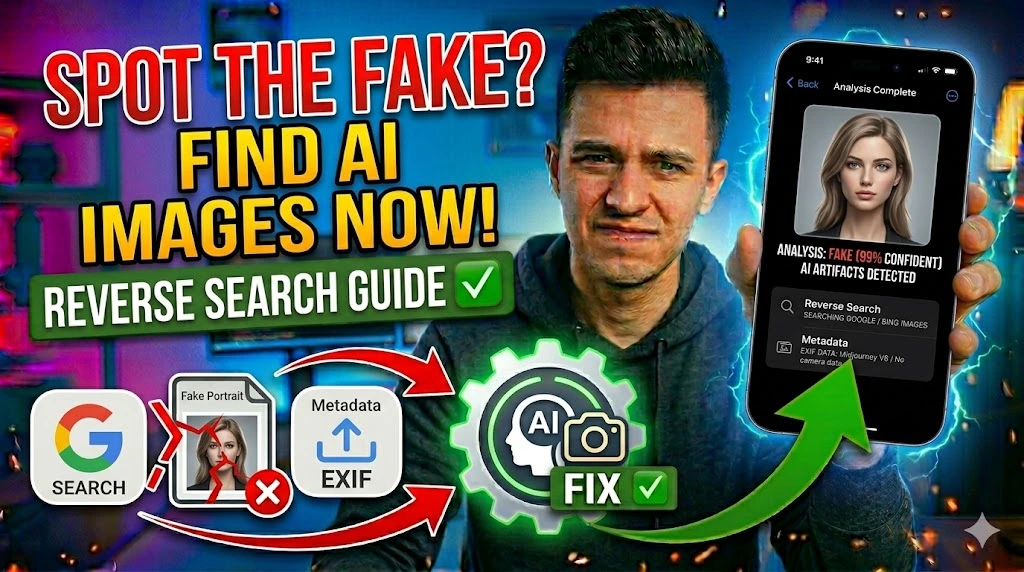
Synthetic images have gotten frighteningly convincing over the past two years, and the average person scrolling through social media or reading a news article has almost no way to tell the difference at a glance. If you’ve ever looked at a photograph and felt something was slightly off — the hands have too many fingers, the background text is gibberish, or the lighting just doesn’t match — your instincts were probably right. The challenge is confirming that suspicion with actual evidence.
Three things make AI image detection genuinely difficult: modern generators like Midjourney v6 and DALL-E 3 have largely fixed the obvious tells like distorted faces, image stripping tools can wipe metadata before a fake image gets shared, and most people don’t know which free tools actually work versus which ones are just guessing. This guide cuts through all of that. You’ll learn exactly how to run a reverse image search, read EXIF metadata, use AI detection classifiers, and analyze visual artifacts — the same process fact-checkers and digital forensics researchers use daily.
Technical Specifications
| Technical Detail | Specification / Requirement |
|---|---|
| Skill Category | AI & Tech Tutorials / Digital Literacy |
| Applicable To | Journalists, researchers, general users, content moderators |
| Tools Required | Google Images, TinEye, ExifTool or Jeffrey’s Exif Viewer, Hive Moderation, FotoForensics |
| Difficulty Level | Beginner to Intermediate |
| Time Per Image Analysis | 3 – 10 minutes for a thorough check |
| Cost | All primary tools are free; some AI detectors have premium tiers |
| Platform | Desktop browser (recommended); mobile browser for basic checks |
| Reliability Note | No single method is 100% definitive — use at least two methods together |
Method 1: Run a Reverse Image Search on Google and TinEye
Reverse image search is always your first move because it costs zero effort and takes under a minute. A real photograph of a real event will almost always appear across multiple credible sources with consistent captions. An AI-generated image, by contrast, typically either shows zero results or appears only on AI image-sharing platforms like Civitai, Lexica, or PromptHero — which is itself a very strong signal.
- Right-click the suspicious image in your browser and select “Search Image with Google” (Chrome) or “Search the Web for Image” (Firefox/Safari).
- Scan the results page carefully — look for the original source, the date it first appeared online, and whether the captions across different sites are consistent with each other.
- Look for any results pointing to Midjourney galleries, Adobe Firefly outputs, or AI art community sites — these directly confirm synthetic origin.
- Open a second tab and go to tineye.com, then click the upload icon to submit the image file directly.
- Check TinEye’s match list — if the image has zero indexed matches but is being shared widely, that suggests it was recently generated rather than pulled from an existing archive.
- Note the earliest date TinEye shows for the image — AI-generated viral images typically appear suddenly with no archive history before the date they went viral.
Method 2: Inspect EXIF Metadata for Missing or Suspicious Camera Data
Every legitimate photograph taken with a smartphone or camera embeds EXIF metadata — technical data that records the camera model, lens used, shutter speed, GPS coordinates, and the exact timestamp. AI-generated images contain none of this. When you open the metadata of an AI image, the camera fields are either completely blank or replaced with generic software tags like “Adobe Photoshop” with no underlying hardware data.
- Download the image to your device by right-clicking and selecting Save Image As.
- Open your browser and go to exifinfo.org or jeffreysexifviewer.com — both are free and require no login.
- Click the Choose File button and upload the image you just saved.
- Look at the output table for these specific fields: Camera Make, Camera Model, Lens Info, GPS Data, and Date/Time Original.
- Compare what you see — a real photo from an iPhone 15 Pro, for example, will show “Apple”, “iPhone 15 Pro”, specific focal length data, and a GPS coordinate. An AI image will show blank fields or only a Software tag like “Stable Diffusion WebUI 1.7.0”.
- Pay attention to the Software field specifically — generators like Midjourney, DALL-E, and Stable Diffusion sometimes write their name directly into this field before the image gets shared.
Method 3: Use an AI Image Classifier Tool
Dedicated AI detection classifiers are trained on hundreds of thousands of synthetic and real images to recognize the subtle statistical patterns that human eyes miss — things like unnatural frequency distributions in pixel noise and inconsistent compression artifacts. These tools aren’t perfect, but they’re a strong second layer of verification when used alongside metadata inspection.
- Go to hivemoderation.com/demo in your browser — Hive’s AI-generated image detector is free for individual image analysis.
- Click the upload area and select the image file from your device, or paste a direct image URL into the URL input field if you don’t want to download it first.
- Wait 5–10 seconds for the classifier to process the image. Hive returns a percentage confidence score split between “AI Generated” and “Not AI Generated.”
- Treat any result above 85% AI confidence as a strong indicator — not an absolute verdict, but significant enough to investigate further.
- Cross-check with a second tool: go to illuminarty.ai and repeat the upload process. This tool also identifies which AI model likely generated the image, which is useful forensic context.
- Record both confidence scores together — two independent classifiers both returning high AI probability is considerably more reliable than a single result.
Method 4: Analyze Visual Artifacts and Anatomical Tells Manually
No tool catches everything, so training your own eye is genuinely valuable. AI generators still struggle with specific patterns that, once you know what to look for, become immediately obvious even in polished outputs.
- Zoom into the hands and fingers first — AI models frequently generate the wrong number of fingers, fused knuckles, or fingers that blend into each other at the base. This is the single most reliable visual tell across all current generators.
- Examine text within the image — signs, shirts, books, and labels will contain garbled pseudo-text that looks plausible at thumbnail size but is meaningless on close inspection. Look for letters that don’t form real words in any language.
- Check earrings, glasses, and jewelry — generators often render one earring correctly and make the other asymmetrical, misshapen, or floating slightly off the earlobe.
- Study the background depth carefully — AI images frequently show bokeh-like blurring in backgrounds that follows a suspiciously uniform pattern rather than the natural optical falloff a real lens produces.
- Look at hairlines along the edges of faces — real hair has individual strand variation. AI-generated hair at the scalp line often looks like a single merged texture that was painted rather than photographed.
- Check for lighting inconsistency — if a person’s face is lit from the left but a shadow on a nearby object implies light from the right, the scene was composited by an algorithm, not captured in a single real moment.
Method 5: Check C2PA Content Credentials and Provenance Metadata
This is the most advanced method and works only on images published by organizations that have adopted the Coalition for Content Provenance and Authenticity (C2PA) standard — which increasingly includes Adobe, Microsoft, BBC, and several major camera manufacturers. C2PA embeds a cryptographically signed provenance record directly into the image file, making it impossible to fake without breaking the signature.
- Go to contentcredentials.org/verify in your browser.
- Upload the image file by clicking Select a File or dragging it into the drop zone on the page.
- Read the provenance report that appears — a legitimate image with C2PA credentials will show the capture device, the editing software used, any crop or adjustment history, and a green verified badge confirming the cryptographic signature is intact.
- Note what happens when credentials are absent — the tool will explicitly state “No Content Credentials found.” This doesn’t confirm the image is AI-generated, but it does mean the image has no verifiable chain of custody, which is itself a red flag for high-stakes use.
- Look for the specific “Created with AI” flag — when Adobe Firefly or Photoshop’s generative fill tools are used, they write a C2PA tag directly into the file identifying AI involvement. This is the gold standard of AI disclosure when present.
Frequently Asked Questions
Can someone strip metadata from an AI image to make it look real?
Yes, and it happens frequently. Any image editing software — including simply screenshotting an image and re-saving it — strips EXIF data completely. This is exactly why metadata absence alone isn’t definitive proof of AI generation. However, stripping metadata doesn’t help an image pass visual artifact analysis, AI classifier tools, or reverse search checks. That’s why this guide recommends combining at least two methods rather than relying on any single signal. Metadata presence confirms authenticity; metadata absence just means you need to dig deeper.
How accurate are AI image detection tools like Hive and Illuminarty?
Current state-of-the-art classifiers achieve roughly 85–95% accuracy on standard test sets, but real-world accuracy drops noticeably when the image has been compressed, resized, or heavily post-processed before you receive it. Compression artifacts from JPEG re-saves, in particular, can confuse classifiers by adding noise patterns that partially mask the statistical signatures these tools look for. Always treat classifier output as one data point in a larger investigation rather than a definitive verdict — especially for anything consequential like legal or journalistic use.
Do AI video detectors work the same way as image detectors?
The core methodology overlaps — both look for unnatural frequency patterns, missing provenance metadata, and visual inconsistencies — but video detection adds temporal analysis, meaning tools examine how features change frame to frame. Real video has natural micro-jitter in facial muscles, hair, and clothing. AI-generated video (from tools like Sora or Runway) often produces subtly uniform motion that lacks this organic variation. Tools like Sensity AI and Reality Defender specialize in video deepfake detection and are worth using separately from image-specific tools when analyzing video content.