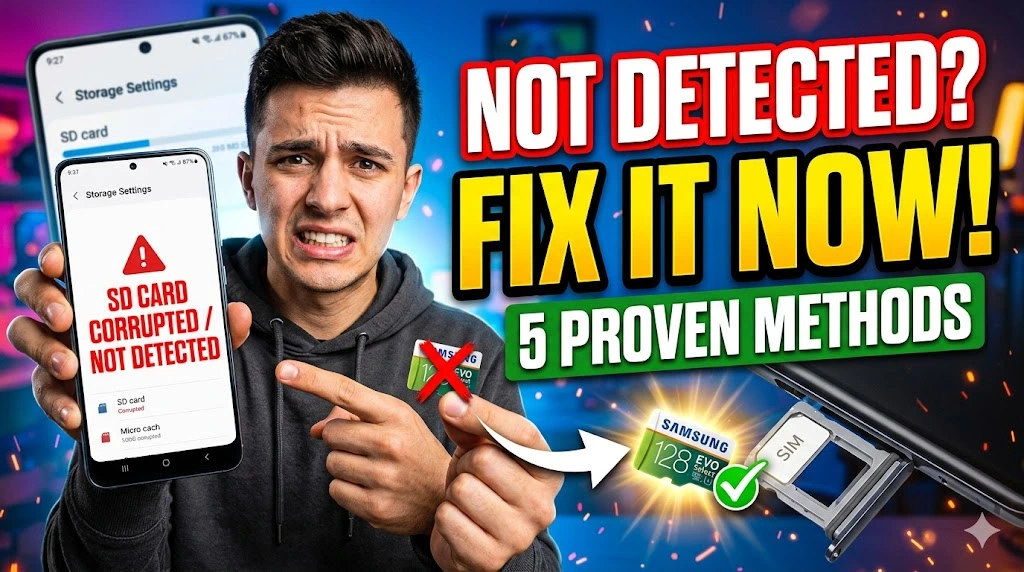
Your phone suddenly stops reading your MicroSD card — or worse, it shows up as “corrupted” or “blank.” That panic is completely understandable, especially when your photos, music, or important files are stored on it. Before you assume the card is permanently dead, know this: most MicroSD detection failures are completely recoverable with the right steps.
There are a few common culprits behind this problem. A dirty or oxidized card contact point can break the electrical connection between the card and your phone’s slot. Corrupted file system metadata — often caused by removing the card without safely ejecting it — fools your phone into thinking the card is unreadable. Software glitches in Android’s storage manager can also cause the OS to simply fail to mount a perfectly healthy card. In rarer cases, incompatible card formats (exFAT on older Android builds) or a damaged slot are to blame.
This guide walks you through five tested, practical fixes — starting with the simplest ones — so you can recover access to your card without losing data or visiting a repair shop.
| Technical Detail | Specification / Requirement |
|---|---|
| Target Platform | Android 8.0 (Oreo) and above |
| Error Type | MicroSD not detected / card corrupted / blank SD card |
| Affected Card Types | MicroSD, MicroSDHC, MicroSDXC |
| Difficulty Level | Beginner to Intermediate |
| Estimated Fix Time | 5 to 30 minutes |
| Tools Required | Android phone, optional: PC with card reader |
| Risk to Data | Low (if you follow steps in order) |
| Success Rate | ~85–90% for software-related failures |
Method 1: Clean the MicroSD Card Contacts and Reseat It
This is the most overlooked fix — and it works surprisingly often. Dust, skin oils, or slight oxidation on the gold contacts at the bottom of your card can completely break the electrical connection, making the phone act as if no card exists.
- Power off your phone completely before removing the card.
- Eject the SIM/SD tray using the ejector pin (or a paperclip).
- Remove the MicroSD card carefully and hold it under good lighting.
- Inspect the gold contact strips — look for smudging, discolouration, or visible debris.
- Clean the contacts gently using a dry cotton swab or the eraser end of a pencil (rub lightly, then wipe clean).
- Reinsert the card firmly into the tray, making sure it clicks or sits flush.
- Power on your phone and wait 30 seconds for the OS to mount the card.
Many users report this single step resolves the “no SD card” error, especially on phones that have been carried in dusty or humid environments.
Method 2: Unmount and Remount the SD Card via Settings
If the card is physically seated but your phone still shows “SD card not found” or “SD card blank,” Android’s storage manager may have failed to mount it correctly during boot. Forcing a remount resets this without touching your data.
- Open your phone’s Settings app.
- Tap on Storage (on Samsung, it may be under “Device Care → Storage”).
- Scroll down and locate your SD card in the storage list.
- Tap the SD card entry and select Unmount SD Card (or “Eject”).
- Wait 10 seconds, then tap Mount SD Card to remount it.
- Return to your home screen and open your file manager to confirm the card is now visible.
On Android 12 and above, this option sits under Settings → Storage → SD Card → ⋮ (three-dot menu) → Unmount. The path varies slightly by manufacturer, but the option exists on all major brands including Xiaomi, OnePlus, and Oppo.
Method 3: Check and Change the SD Card Format (exFAT vs FAT32)
If your phone detects the card but immediately shows “unsupported file system” or asks you to format it, there’s a format mismatch. Cards above 32GB ship pre-formatted as exFAT, but some older Android builds (pre-Android 7) don’t natively support exFAT and will refuse to read it.
- Insert the MicroSD card into a Windows PC using a card reader (most laptops have a built-in slot or use a $3 USB adapter).
- Open File Explorer and right-click your SD card drive letter.
- Select “Properties” and note the file system shown under the General tab.
- If it reads exFAT, back up your files to the PC first.
- Right-click the drive again and choose Format.
- Set File System to FAT32 (for cards 32GB and under) or keep exFAT (for Android 7+ devices with 64GB+ cards).
- Uncheck “Quick Format” to run a full format that fixes bad sectors.
- Click Start, wait for completion, then reinsert the card into your phone.
Important: Formatting erases all data on the card. Only proceed after backing up your files to a PC or cloud storage.
Method 4: Use Android’s Built-in SD Card Error Check and Repair
Android 10 and above includes a built-in error-checking function that can repair corrupted file system tables on your SD card — the same kind of damage that causes the “SD card blank or has unsupported filesystem” error.
- Open Settings and go to Storage.
- Tap your SD card to open its details page.
- Look for a “Check & fix” or “Repair” option (this appears when Android detects file system errors). On Samsung One UI, it appears as “Fix SD card” under the SD card options menu.
- Tap it and let Android complete the repair scan — this usually takes 1–3 minutes depending on card size.
- If no repair option appears, tap the three-dot menu (⋮) at the top right and check for a “Format as portable storage” diagnostic option.
- Restart your phone after the repair completes.
Alternatively, on Windows, you can run chkdsk [driveletter]: /f in Command Prompt (Run as Administrator) to repair the FAT file system on the card externally before reinserting it.
Method 5: Test the Card on Another Device and Check Slot Health
If none of the above methods work, the issue is either a damaged card or a faulty SD card slot on your phone. Testing on a second device isolates which component is failing.
- Remove the MicroSD card from your phone.
- Insert it into another Android phone or a laptop/PC card reader.
- Check if the card is detected and readable on the second device.
- If the card works on the second device, the problem is your phone’s SD card slot — check for bent pins or debris inside the slot using a flashlight.
- Use a thin toothpick or a burst of compressed air to carefully clear the slot if you see debris — never use metal tools.
- If the card fails on the second device too, the card itself has failed. At this point, try a data recovery tool like Recuva (Windows, free) or DiskDigger (Android app) before considering the card unrecoverable.
- Run Recuva, select the SD card drive, and perform a deep scan — it can recover JPEGs, videos, and documents even from formatted or corrupted cards.
If physical slot damage is confirmed, a qualified repair technician can replace the SD card connector on most Android phones for a moderate cost — far cheaper than assuming the phone is unusable.
FAQ
Why does my MicroSD card keep getting corrupted every few weeks?
Repeated corruption usually points to one of three causes: improperly removing the card without using “Eject” first (always unmount before physical removal), a low-quality or counterfeit card prone to data integrity failures, or a phone SD slot with intermittent contact that disrupts write operations mid-process. Buy cards from reputable brands — Samsung Evo, SanDisk Ultra, or Lexar — and always eject via Settings before removing the card physically.
Can I fix a corrupted MicroSD card without formatting and losing my files?
Yes, in many cases. The chkdsk command on Windows can repair file system errors without touching your actual file data. Similarly, Android’s built-in repair tool attempts to fix the directory structure while preserving files. Only resort to formatting if repair tools fail — and even then, run Recuva or DiskDigger on the card before formatting to recover as much data as possible.
My phone asks me to “set up” or “format” the SD card every time I insert it — what does that mean?
This happens when your phone’s SD card slot loses its mount state during a restart or when the card seated loosely during use. It doesn’t always mean the card is corrupted — first try cleaning the contacts (Method 1) and reseating the card. If the prompt persists, your phone may be reading the card as a new, unformatted device due to a corrupted partition table. Backing up files and running a full format (not quick format) usually resolves this permanently.