Category: AI & Tech Tutorials | Author: Taazamind Editorial Team | Last Updated: June 2025
Raw CSV files are genuinely unpleasant to work with. Hundreds of rows separated by commas, no column alignment, no visual hierarchy — and the moment you open one in a plain text editor, you understand immediately why non-technical stakeholders refuse to look at data exports. Whether you exported sales records from WooCommerce, pulled a subscriber list from Mailchimp, or downloaded analytics from Google Search Console, the output is always the same: a wall of comma-separated values that nobody wants to read.
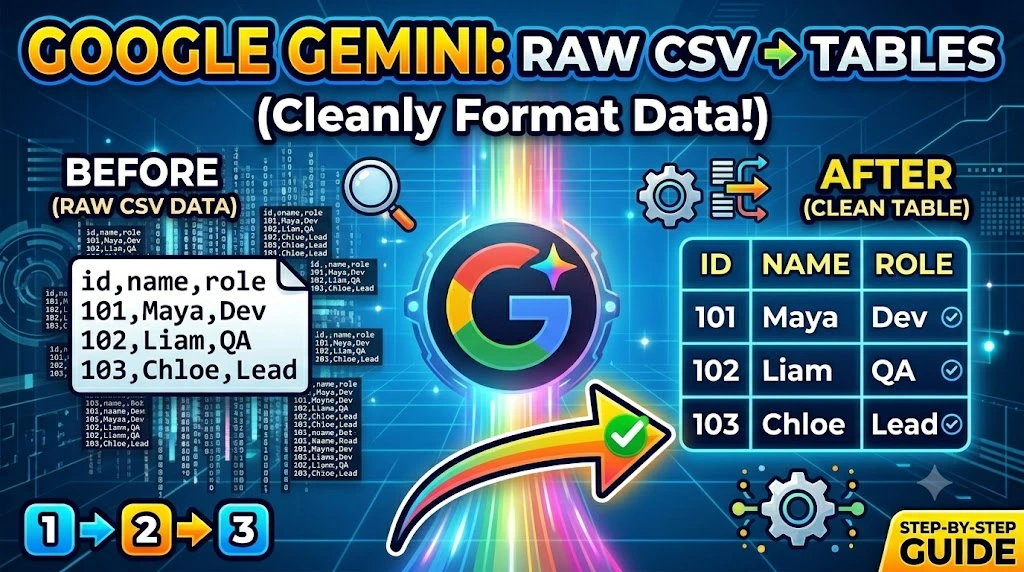
The common frustration is that traditional formatting routes involve Excel, Google Sheets, or manual cleanup — all of which require you to already know what you want the final table to look like. Google Gemini approaches this differently. You describe what you want in plain English, paste in your CSV, and it outputs a clean, structured table — HTML, Markdown, or formatted plain text — with column headers, proper alignment, and optional filtering or sorting applied in the same step.
This guide covers four practical methods: from a simple paste-and-format workflow in Gemini’s web interface, to using the Gemini API with Python for automated CSV processing pipelines.
Technical Specifications
| Technical Detail | Specification / Requirement |
|---|---|
| Target Platform | Google Gemini (gemini.google.com), Gemini API |
| Account Required | Free Google account for web interface |
| CSV Size Limit (Web) | Up to approximately 30,000 characters per prompt |
| API Access | Free tier available via Google AI Studio (aistudio.google.com) |
| Output Formats Supported | Markdown table, HTML table, plain text, JSON |
| Coding Knowledge Needed | None (Methods 1–2), Basic Python (Methods 3–4) |
| Difficulty Level | Beginner to Intermediate |
| Estimated Time Per Task | 1–5 minutes |
Method 1: Paste CSV Directly Into Gemini and Request a Formatted Table
This is the fastest approach for small to medium CSV files — no tools, no plugins, just a well-structured prompt.
- Open your CSV file in any text editor — Notepad, VS Code, or even TextEdit on macOS. Do not open it in Excel first, as Excel sometimes auto-reformats date and number values in ways that alter the raw data.
- Select and copy the CSV content. For large files, copy only the first 50–100 rows for a test run before processing the full dataset.
- Go to
gemini.google.comand sign in with your Google account. - Type your formatting instruction first, before pasting the data. The instruction should specify the output format, which columns to include, and any sorting preference. For example: “Convert the following CSV data into a clean Markdown table. Keep all columns. Sort rows by the third column (Revenue) in descending order. Use proper column headers from the first row.”
- Press Shift+Enter to add a new line without sending the message, then paste your CSV data directly below the instruction.
- Press Enter to send. Gemini will return a formatted Markdown table with pipe-separated columns and a header divider row.
- Copy the output and paste it into your WordPress block editor (switch to Code Editor view and paste into a Markdown block), Notion, or any documentation tool that renders Markdown tables.
The key to getting consistent results is specificity in step 4. Telling Gemini “make a table” produces mediocre output. Telling it exactly which columns matter, what format you want, and how to handle empty cells produces something you can publish directly.
Method 2: Upload a CSV File Directly Using Gemini’s File Attachment Feature
For larger CSV files that exceed comfortable copy-paste length, Gemini’s file upload feature lets you attach the file and ask questions about it directly — no character limit issues.
- Open
gemini.google.comand start a new conversation. - Click the paperclip or attachment icon in the message input area. On mobile, this appears as a “+” button.
- Select your CSV file from your device. Gemini accepts
.csv,.txt, and several other text-based formats. Files up to a few MB process reliably on the free tier. - Wait for the file to upload — a thumbnail or filename confirmation appears in the input box once it’s ready.
- Type your formatting request alongside the uploaded file. Be explicit about the output format: “This CSV contains product inventory data. Please format it as an HTML table with a header row, alternating row styling using basic inline CSS, and exclude the ‘Internal SKU’ and ‘Supplier Code’ columns from the output.”
- Send the message. Gemini reads the entire file, applies your instructions, and returns the formatted table in the chat.
- For HTML output, copy the returned code and paste it directly into your WordPress post using the “Custom HTML” block. The table will render immediately in preview mode.
This method is particularly useful when the CSV has inconsistent quoting, embedded commas inside fields, or multi-line cell values — edge cases that break simple paste-and-format. Gemini handles these gracefully because it reads the file structure semantically rather than parsing it character by character.
Method 3: Automate CSV-to-Table Formatting Using the Gemini API and Python
When you have recurring CSV exports — weekly sales reports, daily analytics pulls, monthly subscriber lists — running through the Gemini web interface manually every time is not practical. This Python script sends a CSV to the Gemini API and saves the formatted table output to a file automatically.
Prerequisites: Python 3.9+, a free Gemini API key from aistudio.google.com, and pip installed.
- Get your API key by visiting
aistudio.google.com, signing in, and clicking “Get API Key.” Copy the key — you’ll use it in the next step. - Install the Google Generative AI library:
pip install google-generativeai
- Create a file called
csv_to_table.pyand paste the following:
import google.generativeai as genai
import csv
import sys

# Configure your API key
genai.configure(api_key="your-gemini-api-key-here")

def csv_to_markdown_table(csv_filepath, output_format="markdown"):
    # Read the CSV file
    with open(csv_filepath, "r", encoding="utf-8") as f:
        csv_content = f.read()

    # Build the prompt
    if output_format == "html":
        format_instruction = "Format it as a clean HTML table with <thead> and <tbody> tags and a bordered style using inline CSS."
    else:
        format_instruction = "Format it as a Markdown table with proper column alignment."

    prompt = f"""Convert the following CSV data into a formatted table.
{format_instruction}
Keep all columns and use the first row as headers.
Return only the table code — no explanation or surrounding text.

CSV Data:
{csv_content}"""

    # Call the Gemini API
    model = genai.GenerativeModel("gemini-1.5-flash")
    response = model.generate_content(prompt)

    return response.text

if __name__ == "__main__":
    input_file = sys.argv[1] if len(sys.argv) > 1 else "data.csv"
    fmt = sys.argv[2] if len(sys.argv) > 2 else "markdown"

    result = csv_to_markdown_table(input_file, fmt)

    output_file = f"output_table.{'html' if fmt == 'html' else 'md'}"
    with open(output_file, "w", encoding="utf-8") as f:
        f.write(result)

    print(f"Table saved to {output_file}")
    print(result[:500])  # Preview first 500 characters
- Run the script from your terminal:
# For Markdown output
python csv_to_table.py sales_data.csv markdown

# For HTML output
python csv_to_table.py sales_data.csv html
- Open the generated
output_table.mdoroutput_table.htmlfile. The HTML version is ready to paste directly into WordPress’s Custom HTML block.
Method 4: Format CSV With Conditional Highlighting Instructions Using Gemini
Plain tables are useful, but tables that visually flag outliers, missing values, or threshold breaches are genuinely informative. Gemini can apply conditional logic to your formatting instructions — turning a raw data export into a decision-ready report.
- Open Gemini at
gemini.google.comand paste or upload your CSV as in Methods 1 or 2. - Write a prompt that includes explicit conditional formatting rules. The more specific the rule, the more reliable the output. For example: “Format this CSV as an HTML table. Apply these rules using inline CSS on the
<td>element: – If the ‘Status’ column says ‘Overdue’, color that row’s background#ffe0e0(light red) – If ‘Revenue’ is below 500, make that cell’s text bold and color it#cc0000– If ‘Units Sold’ is empty or zero, replace the cell value with the text ‘No Data’ in grey italic” - Send the message and review the output HTML carefully. Spot-check two or three rows against the original CSV to confirm the conditional logic applied correctly.
- Copy the HTML table and paste it into WordPress using a Custom HTML block. Switch to the page preview to confirm the colors and styles render as expected in your theme.
- Adjust the instruction and regenerate if any conditional rule applied incorrectly — Gemini handles multi-condition logic well when each rule is on its own line with clear column names.
This workflow is particularly effective for publishing structured data on your site that would otherwise require a plugin or JavaScript table library to render interactively.
Frequently Asked Questions
Does Google Gemini handle CSV files with merged cells or inconsistent column counts?
Standard CSV files don’t support merged cells — that’s an Excel-specific concept. However, CSVs exported from tools like Google Sheets or Airtable sometimes have irregular rows where certain records have more columns than the header row. Gemini handles this better than most programmatic parsers because it reads the content semantically. In practice, tell Gemini explicitly: “Some rows may have extra or missing columns — skip those rows and only include rows that match the header structure.” That single instruction prevents malformed rows from breaking your output table.
Can I use Gemini to clean dirty CSV data and format it at the same time?
Yes, and this is one of Gemini’s most practical advantages over writing a pandas script. You can combine cleaning and formatting in a single prompt — for example: “Remove duplicate rows, fix phone numbers that are missing country codes by prepending +91, convert all date values in the ‘Created At’ column to DD/MM/YYYY format, then output everything as a Markdown table.” Gemini applies each instruction in sequence. For large files processed via the API (Method 3), extend the prompt with your cleaning rules before the format instruction and the model will handle both passes in one call.
What is the best output format from Gemini for pasting into WordPress?
It depends on your goal. Markdown tables paste cleanly into any WordPress editor that uses a Markdown block or the Classic editor with a Markdown plugin — they’re lightweight and easy to edit later. HTML tables (with <table>, <thead>, <tbody> tags) give you full styling control and work in the Custom HTML block without any plugin. If you use a page builder like Elementor or Divi, request HTML output from Gemini and paste it into a Code widget. Avoid requesting plain text tables (space-aligned columns) for WordPress — they lose their alignment the moment the font changes.
Published on Taazamind.com | Practical tutorials for developers, webmasters, and digital builders.