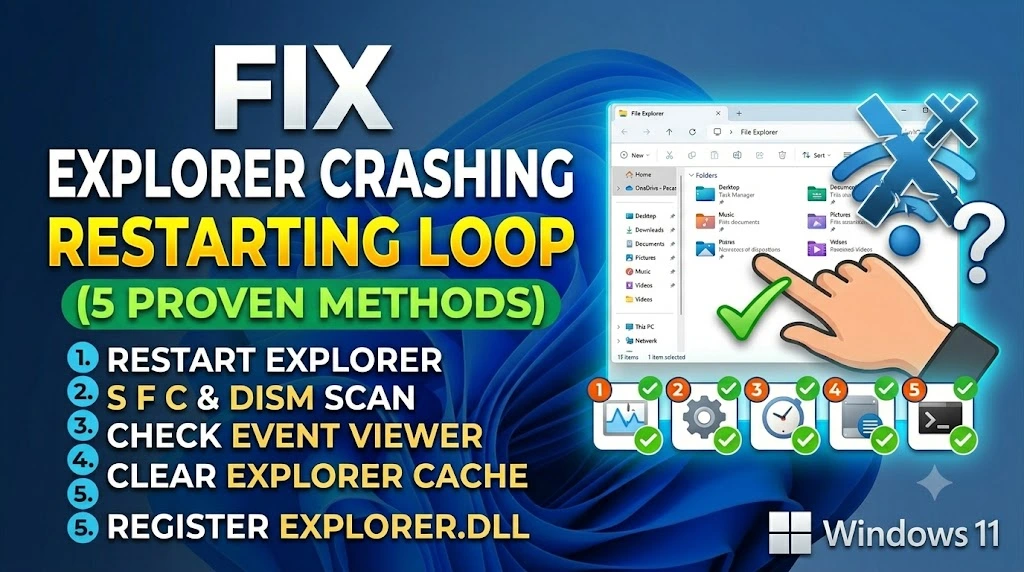
If your taskbar keeps flickering, your desktop icons vanish and reappear every few seconds, or your screen goes black momentarily on repeat — Windows Explorer is stuck in a crash-restart loop. It is one of the more alarming Windows issues because it affects everything at once: the taskbar, Start menu, File Explorer, and desktop all run through the same explorer.exe process. When that process crashes, your entire shell interface goes with it.
The three most common triggers are a corrupted system file that explorer.exe depends on, a third-party shell extension injecting broken code into the Explorer process (this happens more often than people realize — certain antivirus tools, context menu add-ons, and cloud sync clients are frequent offenders), and a damaged user profile or registry key that Windows Explorer references during startup. The reassuring part is that explorer.exe restarting itself means Windows is actively trying to recover — your files and data are safe. This guide walks you through seven fixes ordered from the fastest to the most thorough, so you can resolve this without a full Windows reinstall.
Technical Specifications
| Technical Detail | Specification / Requirement |
|---|---|
| Target Platform | Windows 10 and Windows 11 |
| Error Type | explorer.exe crash / restart loop |
| Affected Component | Windows Shell (explorer.exe) |
| Difficulty Level | Beginner to Intermediate |
| Estimated Fix Time | 5 – 30 minutes |
| Tools Required | Task Manager, Command Prompt, Event Viewer |
| Risk Level | Low (no data loss involved) |
| Applies To | All desktop and laptop PCs running Windows 10/11 |
Method 1: Manually Restart Explorer.exe via Task Manager
Before diving into deeper fixes, force a clean restart of the Explorer process. This clears any temporary corruption that accumulated during the current session and is often enough to stop the loop entirely — at least long enough to run the remaining methods.
- Press
Ctrl + Shift + Escto open Task Manager directly. - Click the Processes tab if it is not already selected.
- Scroll down and locate Windows Explorer in the list.
- Right-click on it and select Restart from the context menu.
- Your screen will flicker once as Explorer shuts down and relaunches — this is completely normal.
- If Restart is greyed out, click End task instead, then go to File → Run new task, type
explorer.exe, and press Enter.
If the loop stops after this, the crash was caused by a one-time memory or rendering glitch. If it resumes within a few minutes, the issue is deeper and you need to continue with the methods below.
Method 2: Run SFC and DISM to Repair System Files
A corrupted Windows system file is the single most common cause of a persistent Explorer loop. The System File Checker (sfc) scans protected system files and replaces damaged ones automatically, while DISM repairs the underlying Windows image that SFC pulls replacement files from. Running both in sequence gives you a thorough repair pass.
- Press
Windows + S, typecmd, and right-click Command Prompt in the results. - Select Run as administrator — this is essential; the commands will fail without elevated privileges.
- Type the following and press Enter — this repairs the Windows component store first:
DISM /Online /Cleanup-Image /RestoreHealth - Wait for DISM to finish — it connects to Windows Update servers and may take 10–15 minutes. Do not close the window.
- Once complete, type the next command and press Enter:
sfc /scannow - Wait again for the scan to reach 100%. It will report one of three results: no integrity violations, repaired files, or files it could not fix.
- Restart your PC when both commands finish, then observe whether Explorer is stable.
If SFC reports files it could not repair, note that message — it means the damage is in a location that requires a more targeted repair, which the Event Viewer in Method 3 will help you pinpoint.
Method 3: Check Event Viewer to Identify the Crash Trigger
Rather than guessing what is causing the crash, Event Viewer logs the exact DLL or application that was loaded into explorer.exe when it failed. This takes two minutes and tells you precisely which program or file to target.
- Press
Windows + R, typeeventvwr.msc, and press Enter. - In the left panel, expand Windows Logs → Application.
- Look for recent Error entries (marked with a red X) at times that match when your Explorer crashes.
- Click each error entry and read the details in the bottom panel — specifically look for any mention of a Faulting module name (e.g., a DLL file like
ntdll.dll,shell32.dll, or a third-party name likeOneDrive.dllor an antivirus component). - Note the faulting module name — this is your target for the next steps.
If the faulting module belongs to a third-party application (anything not named ntdll.dll, kernel32.dll, or another core Windows file), jump directly to Method 5 to disable that shell extension. If it points to a Windows core file, continue with Method 4.
Method 4: Clear the Windows Explorer History and Thumbnail Cache
Explorer builds and stores thumbnail previews and Quick Access history in a cache database on your drive. When this database becomes oversized or corrupted, Explorer crashes every time it tries to read from it — which happens constantly during normal browsing. Clearing it is safe and takes under a minute.
- Press
Windows + R, typecleanmgr, and press Enter to open Disk Cleanup. - Select your C: drive if prompted and click OK.
- Check the box next to Thumbnails in the list and click OK to delete.
- Additionally, open File Explorer Options by searching for it in the Start menu.
- On the General tab, click Clear next to the “Clear File Explorer history” option.
- Click Apply and OK.
- Open Task Manager, restart Explorer.exe using the steps from Method 1, and check for stability.
Thumbnail cache corruption is especially common on machines with large media libraries or external drives that are frequently connected and disconnected, because Explorer tries to load thumbnails for files it can no longer reach.
Method 5: Disable Third-Party Shell Extensions with ShellExView
Shell extensions are plugins that add right-click menu options, icon overlays, and preview features directly inside Windows Explorer. Tools like Google Drive, Dropbox, 7-Zip, WinRAR, and many antivirus programs install these — and a buggy or outdated extension can crash the entire Explorer process every time you trigger it. ShellExView lets you disable them selectively without uninstalling anything.
- Download ShellExView from NirSoft’s official website (nirsoft.net) — it is a free, portable tool, no installation needed.
- Run
shexview.exeas administrator by right-clicking it and selecting Run as administrator. - Go to Options → Filter by Extension Type and select Context Menu to see only right-click menu extensions.
- Click the Company Name column header to sort by manufacturer — all non-Microsoft extensions will group together.
- Select all non-Microsoft extensions (highlighted in pink by default in ShellExView), right-click, and choose Disable Selected Items.
- Restart Explorer via Task Manager and test stability.
- If Explorer stabilizes, re-enable extensions one at a time, restarting Explorer between each, until the crash returns — that last enabled extension is your culprit.
The most frequent offenders in crash reports are outdated cloud storage clients and older antivirus context menu handlers that have not been updated for Windows 11’s new shell architecture.
Method 6: Run a Clean Boot to Isolate the Conflicting Application
If ShellExView does not reveal the cause, a Clean Boot starts Windows with only Microsoft services running, completely bypassing all third-party startup programs. If Explorer is stable in Clean Boot, a startup application is definitively the problem.
- Press
Windows + R, typemsconfig, and press Enter. - Click the Services tab and check the box labeled Hide all Microsoft services at the bottom.
- Click Disable all to turn off every remaining third-party service.
- Click the Startup tab and select Open Task Manager.
- In Task Manager’s Startup tab, right-click each enabled item and select Disable — work through the entire list.
- Close Task Manager, click Apply and OK in msconfig, then restart your PC.
- Test Explorer stability in the clean boot environment for 5–10 minutes.
If Explorer is completely stable in Clean Boot, re-enable startup programs in small groups — half at a time — restarting between each batch to narrow down which application is the conflict. This binary elimination approach typically identifies the culprit within two or three restarts.
Method 7: Create a New Windows User Profile
If every method above has been applied and the crash loop persists only on your account, the issue is isolated to your Windows user profile itself — specifically the registry hive (NTUSER.DAT) or AppData folder entries that are corrupt. A new profile loads a completely clean copy of these.
- Open Settings with
Windows + Iand navigate to Accounts → Family & other users. - Click Add account under “Other users.”
- Select I don’t have this person’s sign-in information → Add a user without a Microsoft account.
- Enter a temporary username like
TestUserand set a password. - Sign out of your current account and sign into the new TestUser account.
- Open File Explorer and browse folders to observe whether Explorer is stable.
- If it runs without crashing, your original profile is the root cause. Transfer your files from
C:\Users\YourOldNameto the new account and continue using the new profile, or contact Microsoft Support for profile repair options.
Profile corruption is less common but does occur after failed Windows upgrades, sudden power loss during a Windows Update, or aggressive third-party system cleaners that delete registry entries they should not touch.
Frequently Asked Questions
Is the Windows Explorer crash loop dangerous for my files?
No — the crash loop affects the Windows graphical shell, not the file system itself. Your documents, photos, and other data are completely unaffected. The explorer.exe process only manages the visual interface (desktop, taskbar, and folder windows), so even if it crashes continuously, nothing is being written to or deleted from your storage. That said, working in a crash loop environment is risky because you may accidentally dismiss unsaved work during a screen flicker. Save and close open documents before running the repair methods above.
Why does explorer.exe keep crashing specifically when I right-click something?
Right-clicking in Windows Explorer loads all installed shell extensions simultaneously to build the context menu. If any single extension contains a bug, has an incompatible DLL, or references a file that no longer exists, the entire Explorer process crashes at that moment. This is why the crash feels “triggered” by right-clicking rather than random — it is not random at all. Method 5 using ShellExView directly targets this pattern, since it lets you disable context menu extensions individually until the problematic one is identified.
Can a recently installed app cause the Explorer restart loop?
Absolutely, and this is one of the most overlooked causes. Applications that integrate with Windows Explorer — file archivers, screenshot tools, PDF readers, cloud sync clients, and image editors — often install shell extensions during setup. If the app has a bug in its shell extension, Explorer starts crashing immediately after installation. The fastest way to confirm this is to think about when the crash loop started and whether you installed anything in the hours or days before it began. Uninstalling that application through Settings → Apps → Installed apps is often the most direct fix, and ShellExView in Method 5 lets you verify it without fully uninstalling.
Published on Taazamind.com | Category: OS & Software Fixes Tested on Windows 10 22H2 and Windows 11 23H2 builds