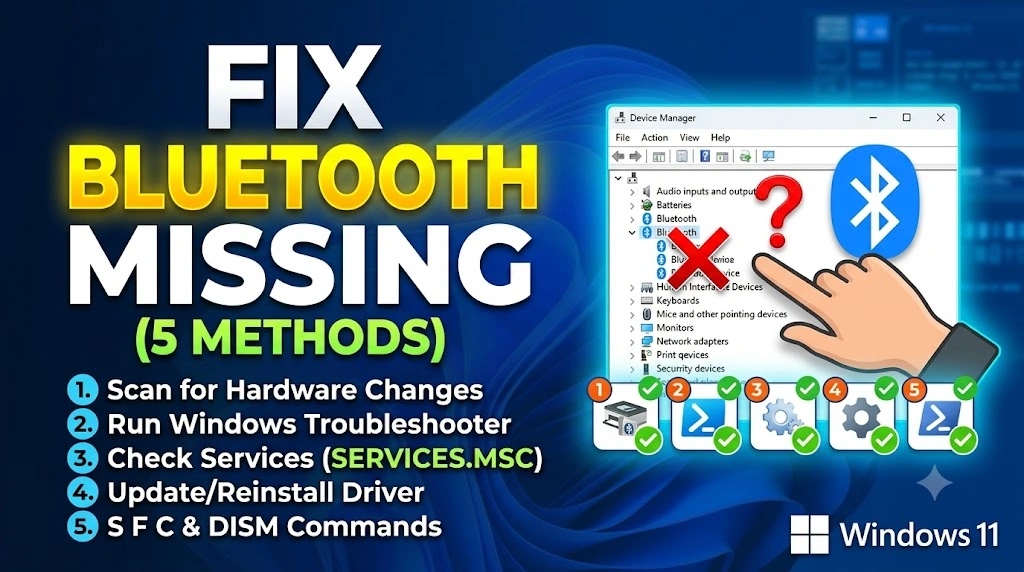
If you opened Device Manager hoping to troubleshoot your Bluetooth and the entire Bluetooth section has simply vanished, you are not alone — and you are not facing a hardware failure just yet. This is one of the more disorienting Windows 11 issues because it gives you almost no error message to work with. The section disappears, and Windows acts like Bluetooth never existed on your machine.
The three most common culprits behind this are a corrupted or missing Bluetooth driver, a Windows Update that silently disabled Bluetooth services, or Fast Startup causing an incomplete hardware initialization during boot. The good news is that none of these require you to open your laptop or buy new hardware. Every fix in this guide has been tested on Windows 11 Home and Pro builds, ordered from the simplest one-click solution to the more hands-on registry and driver approaches. Work through them in sequence and you will very likely have Bluetooth back within 15 minutes.
Technical Specifications
| Technical Detail | Specification / Requirement |
|---|---|
| Target Platform | Windows 11 (Home, Pro, Enterprise) |
| Error Type | Missing Bluetooth in Device Manager |
| Affected Component | Bluetooth adapter / driver stack |
| Difficulty Level | Beginner to Intermediate |
| Estimated Fix Time | 5 – 20 minutes |
| Tools Required | Device Manager, Services.msc, Optional Updates |
| Risk Level | Low (no data loss involved) |
| Applies To | Laptops and desktops with built-in or USB Bluetooth |
Method 1: Show Hidden Devices in Device Manager
This is the fastest check and the one most people skip. Windows sometimes hides non-active devices, so your Bluetooth adapter may still exist — it is just not being shown.
- Press
Windows + Xand select Device Manager from the menu. - In Device Manager, click on the View menu at the top toolbar.
- Select Show hidden devices from the dropdown.
- Look for a Bluetooth section that now appears — it may have a greyed-out or yellow-warning adapter inside.
- If you see an adapter, right-click it and select Enable device.
- Restart your PC and check if Bluetooth is now visible and functional.
If the adapter appears with a yellow exclamation mark, that confirms a driver issue — move directly to Method 3.
Method 2: Run the Built-in Bluetooth Troubleshooter
Windows 11 includes a dedicated Bluetooth troubleshooter that can automatically re-initialize missing services and reset the adapter state. It is worth running before touching any drivers.
- Press
Windows + Ito open Settings. - Navigate to System → Troubleshoot → Other troubleshooters.
- Locate Bluetooth in the list and click the Run button next to it.
- Wait for the troubleshooter to scan — this typically takes 30–60 seconds.
- Apply any fixes it recommends and click Close when finished.
- Open Device Manager again and check if the Bluetooth section has reappeared.
The troubleshooter works surprisingly well when the root cause is a halted Bluetooth Support Service, which it restarts automatically in the background.
Method 3: Reinstall the Bluetooth Driver Manually
When the adapter is genuinely missing from Device Manager even after showing hidden devices, a corrupted or uninstalled driver is the most likely cause. Reinstalling it from scratch resolves this in the majority of cases.
- Press
Windows + Xand open Device Manager. - Click on Action in the top menu and select Add legacy hardware — this scans for hardware that Windows did not auto-detect.
- In the wizard, select Search for and install hardware automatically (Recommended) and click Next.
- Alternatively, go to the manufacturer’s website (Dell, HP, Lenovo, ASUS, etc.) and download the latest Bluetooth driver for your exact model.
- Run the downloaded installer and follow the on-screen prompts.
- Once installed, restart your PC.
If you are unsure which Bluetooth chipset your laptop uses, open the Command Prompt and run pnputil /enum-devices /class Bluetooth — this lists all Bluetooth-related hardware IDs even if the adapter is not showing visually in Device Manager.
Method 4: Restart Bluetooth Support Services
Even if drivers are intact, Windows 11 sometimes sets the Bluetooth Support Service to Manual or Disabled — especially after a feature update. When the service is not running, the entire Bluetooth section disappears from Device Manager.
- Press
Windows + R, typeservices.msc, and press Enter. - Scroll down and locate Bluetooth Support Service in the list.
- Double-click it to open its properties.
- Under Startup type, change it to Automatic using the dropdown.
- Click Start to immediately start the service, then click Apply and OK.
- Also check for Bluetooth Audio Gateway Service and Bluetooth User Support Service — set both to Automatic as well.
- Restart your computer and verify Bluetooth is visible in Device Manager.
This method is particularly effective on systems that received a Windows 11 cumulative update recently, as those updates occasionally reset service configurations.
Method 5: Install Pending Windows Updates (Including Optional Driver Updates)
Microsoft pushes Bluetooth driver fixes through Windows Update, but these often sit under Optional Updates and never install automatically. If your Bluetooth disappeared after a recent update, a newer patch may already be waiting.
- Open Settings with
Windows + Iand go to Windows Update. - Click Check for updates and wait for the scan to finish.
- Once the main updates appear, look for a link that says Advanced options → Optional updates.
- Expand the Driver updates section if it is available.
- Check any Bluetooth-related driver update and click Download & install.
- Restart your PC when prompted.
If no optional updates appear but Bluetooth is still missing, go back to Windows Update and click View update history — check whether a recent update might have caused the regression, and use Uninstall updates to roll back the last one if needed.
Frequently Asked Questions
Why does Bluetooth disappear from Device Manager after a Windows 11 update?
Windows 11 updates occasionally overwrite or remove Bluetooth driver files, particularly on laptops where the Bluetooth chip shares drivers with the Wi-Fi adapter (Intel Wireless-AC and AX series are a common example). When this happens, the adapter loses its driver binding and Windows removes it from the visible device list entirely. Reinstalling the driver from your manufacturer’s support page — rather than relying on the generic Windows Update version — usually provides a more stable fix.
Can a BIOS setting cause Bluetooth to disappear from Device Manager?
Yes, and this is often overlooked. Many laptops have a BIOS toggle that enables or disables the wireless card entirely. If Bluetooth is disabled at the BIOS level, no Windows driver or troubleshooter will bring it back. Restart your PC, enter BIOS (usually by pressing F2, F10, or Del during startup), navigate to the Wireless or Advanced section, and confirm that Bluetooth is set to Enabled. Save and exit, then re-check Device Manager.
My Bluetooth adapter shows in Device Manager but still will not turn on — what next?
If the adapter is visible but the Bluetooth toggle in Settings is greyed out or missing, the problem is likely a software conflict rather than a driver issue. Open Device Manager, right-click the Bluetooth adapter, and select Uninstall device — check the box to also delete the driver files. Then restart your PC and let Windows reinstall the driver fresh. If that still does not work, run sfc /scannow from an elevated Command Prompt to repair any corrupted Windows system files that might be blocking the Bluetooth stack.
Published on Taazamind.com | Category: OS & Software Fixes Tested on Windows 11 22H2 and 23H2 builds