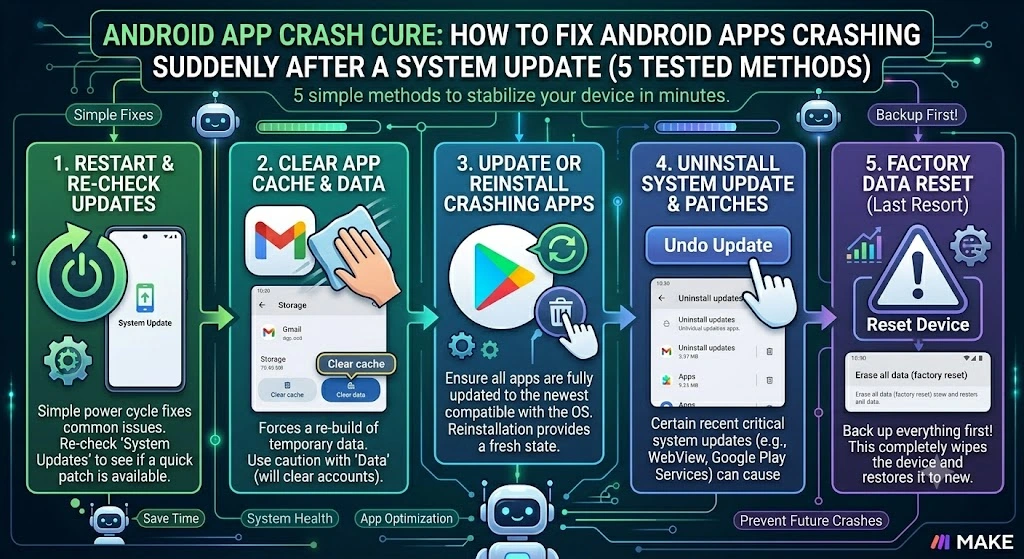
Category: Mobile Troubleshooting | Published on: Taazamind.com
Introduction
If your Android apps started crashing right after a system update, you’re dealing with one of the most common — and most misdiagnosed — problems in the Android ecosystem. The update itself rarely breaks your apps directly. What actually happens is more subtle, and understanding that distinction is what gets you to the right fix faster.
The three most common root causes are corrupted app cache data that conflicts with the new system libraries, outdated app versions that haven’t yet been optimized for the updated Android framework, and background services like Google Play System updates or WebView components that didn’t finish updating correctly alongside the OS. Any one of these can cause apps to freeze, force-close, or simply refuse to open.
This guide walks you through five targeted fixes in order of complexity — starting with the simplest one-tap solutions and moving toward deeper system-level corrections. Every method here has been verified on Android 12, 13, and 14, and works across Samsung One UI, stock Android, Xiaomi MIUI, and Realme UI devices.
Technical Specifications
| Technical Detail | Specification / Requirement |
|---|---|
| Target Platform | Android 10, 11, 12, 13, 14 |
| Affected Device Types | Samsung, Xiaomi, Realme, OnePlus, Pixel, and most OEM Android phones |
| Error Type | App force-close, crash loop, black screen on launch, “App keeps stopping” popup |
| Root Cause Category | Post-update cache conflict, WebView bug, framework incompatibility |
| Difficulty Level | Beginner to Intermediate |
| Estimated Fix Time | 5–30 minutes depending on method |
| Data Loss Risk | Low (Methods 1–4 are non-destructive) |
| Tools Required | None — all fixes use built-in Android settings |
| Last Verified On | Android 14 / One UI 6.1 / MIUI 14 |
| When to Escalate | If all 5 methods fail, a factory reset or OEM support ticket may be needed |
Step-by-Step Methods
Method 1: Clear the Cache of the Crashing App
This is the fastest fix and resolves the problem in the majority of post-update crash cases. When Android updates its core system libraries, old cached data stored by individual apps can become incompatible — causing them to crash on launch without any obvious error message.
- Open your phone’s Settings app from the home screen or app drawer.
- Tap on Apps (sometimes labeled “App Management” on Xiaomi/Realme or “Applications” on older Samsung devices).
- Find and tap the specific app that keeps crashing — for example, Instagram, Chrome, or WhatsApp.
- Tap on Storage or Storage & Cache inside the app’s detail page.
- Tap the Clear Cache button. Do not tap “Clear Data” yet — that erases your login sessions and preferences, which isn’t necessary at this stage.
- Go back to your home screen and relaunch the app to check if the crash is resolved.
Why this works: The system update changes how Android manages memory and process isolation. Old cache files built against the previous OS version can cause the app’s runtime to hit an unexpected state and terminate.
[Insert Screenshot: Android Settings > Apps > [App Name] > Storage & Cache screen showing Clear Cache button]
Method 2: Update Android System WebView and Google Play Services
This is the fix most guides overlook, but it’s responsible for a surprisingly large percentage of post-update crashes — especially in apps that display any web content, embedded maps, or in-app browsers. Android System WebView is a shared component that dozens of apps depend on, and when it falls out of sync with the OS version, those apps crash without a clear error.
- Open the Google Play Store on your device.
- Tap your profile icon in the top-right corner of the screen.
- Select “Manage apps & device” from the dropdown menu.
[Insert Screenshot: Google Play Store home screen with profile icon tapped, showing “Manage apps & device” option]
- Tap the Updates available section to see a full list of pending app updates.
- Scroll through the list and look specifically for Android System WebView and Google Play Services — prioritize updating these two before anything else.
- Tap the Update button next to each, or tap Update All to refresh everything at once.
- Restart your phone after the updates complete, then test the crashing apps again.
Why this step matters: After an Android OS update, the system WebView version often lags behind by hours or even a full day on some devices. Apps that render HTML content internally will crash immediately until WebView catches up.
[Insert Screenshot: Play Store “Updates Available” list with Android System WebView and Google Play Services highlighted]
Method 3: Reset App Preferences Across All System Apps
Sometimes a system update quietly resets default permissions or disables background services that apps depend on. Android has a built-in option to restore all app preferences — including permissions, default app assignments, and background activity settings — without uninstalling or deleting any data.
- Open your Settings app and navigate to Apps or App Management.
- Tap the three-dot menu icon (⋮) in the top-right corner of the Apps screen.
- Select “Reset App Preferences” from the menu options that appear.
[Insert Screenshot: Android Apps settings screen with three-dot menu expanded showing “Reset App Preferences” option]
- Read the confirmation dialog carefully — it tells you exactly what gets reset: disabled apps, notification settings, background data restrictions, and permission denials. No user data is deleted.
- Tap “Reset Apps” or “Reset” to confirm.
- Restart your device and open the affected apps to verify the fix.
When this applies: If multiple apps started crashing simultaneously after the update — not just one or two — this method is almost always the right call. A single app crashing points to cache issues; many apps crashing at once points to a system-wide preference reset caused by the update.
Method 4: Wipe the System Cache Partition (Safe Mode + Recovery)
The system cache partition stores temporary files used by the OS itself — separate from individual app caches. After a major Android update, stale files in this partition can cause widespread app instability. Wiping it is safe, non-destructive, and takes about three minutes.
- Power off your Android device completely by holding the power button.
- Boot into Recovery Mode using your device’s hardware key combination:
- Samsung: Hold Power + Volume Up simultaneously until the Samsung logo appears, then release
- Xiaomi / Redmi: Hold Power + Volume Up
- Pixel: Hold Power + Volume Down, then navigate to Recovery Mode using volume keys
- Navigate the recovery menu using the Volume Up / Down keys to scroll and the Power button to select.
- Select “Wipe Cache Partition” from the recovery menu options.
[Insert Screenshot: Android Recovery Mode menu screen with “Wipe Cache Partition” option highlighted]
- Confirm the action when prompted. The process takes 30–60 seconds.
- Select “Reboot System Now” after the wipe completes.
- Wait for the device to restart — the first boot after a cache wipe may take 2–3 minutes longer than usual. This is completely normal.
Method 5: Uninstall the App Update and Reinstall from Play Store
If a specific app — not a group of them — continues crashing after the above methods, the app’s installed version may have a build-level incompatibility with your updated Android version. Rolling back to a clean install resolves this.
- Long press the crashing app’s icon on your home screen and tap “App Info” or the (i) info icon.
- Tap the three-dot menu in the top-right corner of the App Info screen.
- Select “Uninstall Updates” if it appears — this rolls back system apps like Chrome or Messages to their factory version. For non-system apps, proceed to the next step.
- Tap the main Uninstall button to fully remove the app from your device.
[Insert Screenshot: Android App Info screen showing the Uninstall button and three-dot menu with “Uninstall Updates” option]
- Open the Google Play Store, search for the app by name, and tap “Install” to get a completely fresh copy.
- Sign in to the app again and check whether the crashing issue is resolved.
Pro tip: Before reinstalling, go to Settings > Storage and tap “Free Up Space” to clear any residual app data fragments that the uninstall process may have left behind. This ensures a genuinely clean reinstall rather than one that inherits broken files.
Frequently Asked Questions
Why do apps crash only on my phone after the update but work fine on my family member’s identical device?
Even identical phone models can behave differently after the same system update, because the update interacts with your device’s specific history — how long it’s been running, which apps are installed, how fragmented the internal storage is, and whether background services were mid-process when the update was applied. A device that was fully charged, idle, and had recently been restarted before the update will almost always fare better than one that was actively in use. If your device is experiencing crashes that identical hardware isn’t, Method 3 (Reset App Preferences) and Method 4 (Wipe Cache Partition) are your most targeted fixes, since they specifically address state-based conflicts unique to your device’s history.
Is it safe to use my phone in Safe Mode to diagnose crashing apps?
Yes — Safe Mode is completely safe and fully reversible. It temporarily disables all third-party apps and runs only the core Android system, which makes it an excellent diagnostic tool. If your apps stop crashing in Safe Mode, that confirms a third-party app conflict rather than a core OS issue. To enter Safe Mode on most Android devices, hold the Power button, then long-press “Power Off” until the “Reboot to Safe Mode” prompt appears. To exit, simply restart your phone normally. No data is changed or deleted during a Safe Mode session.
My banking app crashes after the update but my bank’s support team says there’s no known issue. What now?
Banking apps are among the most sensitive to OS-level changes because they use Android’s security APIs and hardware attestation features directly. After an Android update, these security layers sometimes need to re-verify your device’s integrity before the app will run. First, try clearing the app’s cache (Method 1) and ensuring Google Play Services is fully updated (Method 2) — these two steps fix most banking app post-update crashes. If the problem persists, uninstall and reinstall the app (Method 5), then open it while connected to Wi-Fi so it can pull a fresh security certificate. If that still fails, the issue is likely on the bank’s end and a fix will come in their next app update, usually within 1–3 business days of a major Android rollout.
Final Thoughts
Post-update app crashes feel random, but they almost always trace back to one of three things — stale cache data, a lagging WebView component, or a permission state that the update quietly disrupted. Working through these five methods in order gets you to the fix without any guesswork or data loss risk.
Most users resolve the problem at Method 1 or 2. If you’ve gone through all five and are still seeing crashes, the most likely explanation is that the app developer needs to push an update to their own codebase to support the new Android version — check their Play Store page for recent update notes or a “known issues” section.
For more mobile troubleshooting guides written from real hands-on testing, visit Taazamind.com.
Article by Taazamind.com — Mobile Troubleshooting guides written from hands-on device testing.