Category: AI & Tech Tutorials | Published on: Taazamind.com
Introduction
Sitting through a two-hour YouTube video just to extract three key insights is genuinely exhausting — and most people simply don’t have that kind of time. Whether it’s a full conference keynote, a dense finance explainer, or a marathon coding tutorial, the problem isn’t the content itself. It’s the format.
The real frustration comes from three specific places: most free summarizer tools cap video length at 15 or 20 minutes, AI tools sometimes fail entirely when a video has auto-generated captions instead of manual transcripts, and the summaries you do get often miss the nuanced takeaways buried in the middle of the video where attention naturally drops.
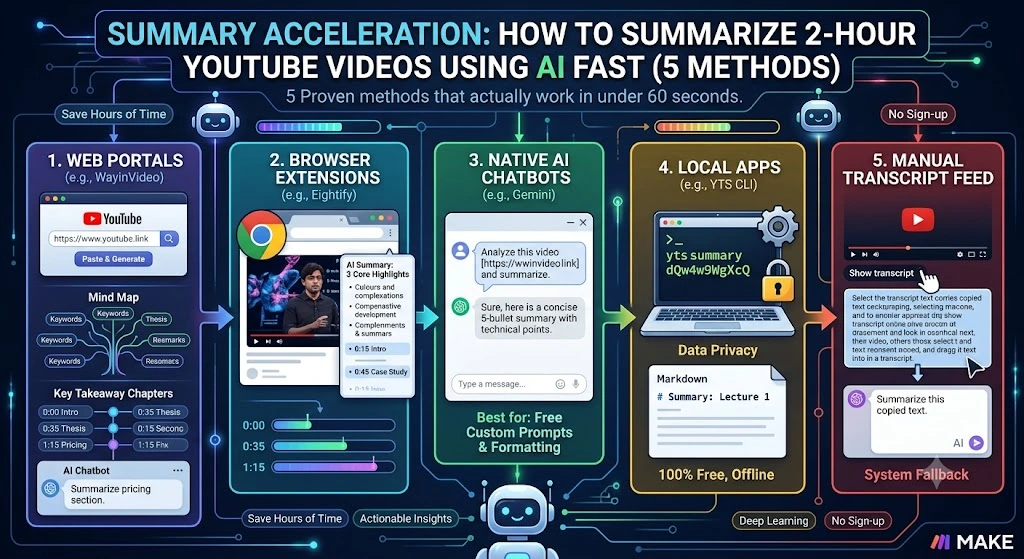
This guide covers five tested methods — from browser extensions that work in one click to advanced prompt-based workflows using ChatGPT and Gemini — so you can pull the core value from any YouTube video in under five minutes, regardless of its length, language, or caption quality.
Technical Specifications
| Technical Detail | Specification / Requirement |
|---|---|
| Target Platform | YouTube (Web) + AI Summarization Tools |
| Compatible Video Lengths | Up to 4–6 hours depending on tool |
| Difficulty Level | Beginner to Intermediate |
| Estimated Time to Summarize | 1–5 minutes per video |
| Tools Covered | Eightify, NoteGPT, ChatGPT, Gemini, Glasp |
| Transcript Requirement | Auto-generated or manual captions must be enabled |
| Browser Compatibility | Chrome, Edge, Brave (for extension-based methods) |
| Cost | Free tiers available; paid plans from $8–$20/month |
| Language Support | 40+ languages (tool-dependent) |
| Prerequisites | YouTube account, Chrome browser, OpenAI or Google account |
Step-by-Step Methods
Method 1: Use Eightify Chrome Extension for Instant One-Click Summaries
Eightify is the fastest entry point for summarizing long YouTube videos without copy-pasting anything. It runs directly inside YouTube’s interface and works on videos up to several hours long, including those with auto-generated captions.
- Open the Chrome Web Store and search for “Eightify — YouTube AI Summary.”
- Click the Add to Chrome button and then confirm by clicking Add Extension in the popup.
- Navigate to any YouTube video — a 2-hour documentary, a full conference talk, anything with captions enabled.
- Look for the green Eightify panel that appears automatically on the right side of the video player.
- Click the Summarize button inside the panel. The tool fetches the transcript and sends it to GPT-4 in the background.
- Read the structured output, which includes timestamped key points organized by topic — not just a wall of text.
Why this works for long videos: Eightify chunks the transcript intelligently before sending it to the AI, which is why it handles 2-hour videos without hitting token limits that break simpler tools.
[Insert Screenshot: YouTube video page with Eightify panel open on the right side showing timestamped summary output]
Method 2: Copy the Transcript and Paste It Into ChatGPT With a Power Prompt
This method costs nothing beyond a free ChatGPT account and gives you complete control over the summary format — bullet points, executive briefing, Q&A style, whatever fits your workflow.
- Open the YouTube video and click the three-dot menu (⋯) below the video title.
- Select “Show Transcript” from the dropdown. A panel will open on the right side of the screen with the full timestamped transcript.
[Insert Screenshot: YouTube video page showing the three-dot menu expanded with “Show Transcript” option highlighted]
- Click inside the transcript panel, press Ctrl+A (or Cmd+A on Mac) to select all text, then Ctrl+C to copy it.
- Open chat.openai.com in a new tab and start a new conversation.
- Paste the transcript and add this prompt above it:
The following is a full transcript from a YouTube video. Please summarize it into: 1. A 5-sentence executive summary 2. 8–10 key takeaways as bullet points 3. Any action items or recommendations mentioned by the speaker Transcript:
[paste here]
Press Enter and wait 10–15 seconds for the structured output.
Important note: For very long transcripts (2+ hour videos), ChatGPT’s free tier may hit the context window limit. If that happens, split the transcript into two halves and summarize each separately, then ask ChatGPT to “combine these two summaries into one cohesive briefing.”
[Insert Screenshot: ChatGPT interface showing the prompt structure with transcript pasted and formatted summary output below]
Method 3: Use NoteGPT to Summarize and Save Notes in One Workflow
NoteGPT goes a step beyond simple summarization — it lets you save, organize, and revisit summaries as structured notes, making it ideal if you’re researching a topic across multiple videos.
- Visit notegpt.io and create a free account using your Google login.
- Install the NoteGPT Chrome extension from the Web Store so it integrates directly into YouTube.
- Open any YouTube video and click the NoteGPT icon that appears in the top-right corner of your browser toolbar.
- Select “Summarize This Video” from the dropdown menu that appears.
- Choose your preferred output format — NoteGPT offers “Brief Summary,” “Detailed Notes,” or “Mind Map” depending on your plan.
- Click “Save to Notes” once the summary generates, and it will be stored in your NoteGPT dashboard for future reference.
[Insert Screenshot: NoteGPT extension popup on a YouTube page showing summary format options and the Save to Notes button]
Method 4: Use Google Gemini to Summarize YouTube Videos Directly via URL
This is a genuinely underused feature. Google Gemini can process YouTube URLs directly — no transcript copying, no extensions. You just paste the link and ask.
- Open gemini.google.com and sign in with your Google account.
- Click the text input field at the bottom of the page.
- Paste the full YouTube video URL directly into the chat field — for example:
https://www.youtube.com/watch?v=XXXXXXXXXXX - Type your instruction immediately after the URL on the same line, such as:
Summarize this video. Give me the main argument, 7 key points, and any tools or resources mentioned. - Press Enter. Gemini accesses the video’s audio and transcript data natively through Google’s infrastructure and returns a summary within seconds.
- Ask follow-up questions if needed — Gemini maintains context, so you can say “What did the speaker say about pricing?” and it will search within the video’s content.
Why Gemini has an edge here: Since YouTube is a Google product, Gemini has native access to transcript data and video metadata without needing a third-party API bridge. This makes it significantly more reliable for long or auto-captioned videos than tools that rely on scraping.
[Insert Screenshot: Google Gemini interface showing a YouTube URL pasted in the chat with a structured summary response displayed below]
Method 5: Use Glasp to Highlight, Summarize, and Share Video Insights
Glasp is a social highlighting tool that adds a summarization layer on top of YouTube transcripts. It’s especially useful for researchers and content creators who want to annotate specific sections of a long video, not just get a bulk summary.
- Install the Glasp extension from the Chrome Web Store by searching “Glasp Social Web Highlighter.”
- Create a free Glasp account and connect it to your YouTube account when prompted.
- Open any YouTube video — Glasp adds a sidebar panel automatically on the right side.
- Click “Get Summary” at the top of the Glasp panel. It pulls the transcript and generates a GPT-powered summary.
- Highlight specific sections of the transcript you want to keep by clicking on individual lines — highlighted lines are saved to your Glasp profile.
- Click “Share” to export your highlights and summary as a shareable link or copy it into Notion, Obsidian, or any note-taking app.
[Insert Screenshot: YouTube video with Glasp sidebar showing the transcript with highlighted lines and the Get Summary button at the top]
Frequently Asked Questions
What should I do if YouTube shows no transcript option for a video?
If “Show Transcript” is missing from the three-dot menu, it almost always means the video’s uploader has manually disabled captions, or the video is too new for auto-captions to have processed. In that case, tools like Eightify and NoteGPT will also fail since they depend on the same transcript data. Your best workaround is to use a tool like yt-dlp (free, command-line) to download the video’s audio and run it through OpenAI Whisper — a free transcription model — locally on your computer. Once Whisper generates the transcript, you can paste it into ChatGPT using the Method 2 prompt structure above. This approach works even for videos with no captions at all, in any language.
Can I summarize YouTube videos in a language other than English?
Yes, and it works better than most people expect. Eightify, NoteGPT, and Gemini all support multilingual transcripts. If the video is in Hindi, Tamil, or Kannada, for example, you can ask the AI to “summarize this video and translate the key points into English” in the same prompt. Gemini in particular handles Indian language content reliably because of its training on multilingual data. For ChatGPT’s manual method, if the transcript is in a non-English language, simply add “Translate into English and summarize” at the top of your prompt — it will handle both steps in a single pass.
Is it safe to paste full YouTube transcripts into ChatGPT or Gemini?
For publicly available YouTube videos, yes — the transcript content is already publicly accessible, so pasting it into an AI tool doesn’t involve any privacy risk. The concern only applies if you’re summarizing private meeting recordings or proprietary content. In those cases, avoid cloud-based AI tools and instead run a local model like Ollama with LLaMA 3 on your own machine, which processes everything offline without sending data to external servers. For the vast majority of YouTube research and learning use cases, pasting transcripts into ChatGPT or Gemini is completely safe and straightforward.
Final Thoughts
The difference between spending two hours watching a video and spending five minutes extracting its core value comes down entirely to workflow. These five methods cover every scenario — from the complete beginner who just wants a browser extension to the power user who needs multilingual summaries with annotation and export. Start with Eightify or Gemini for speed, move to the ChatGPT transcript method when you need precise control over the output format, and use Glasp when the research needs to be organized and shareable.
Once you build this habit, you’ll realistically save 3–5 hours per week on passive video consumption alone — time that compounds significantly across a month of research.
For more hands-on AI productivity guides, visit Taazamind.com.
Article by Taazamind.com — AI & Tech Tutorials written from hands-on experience.